
Advanced Cookie Manager Guide
The Advanced Cookie Manager is designed for centralized Cookie login-state management across browser environments. It is not only an import/export window; it is a Cookie health workspace for users who operate many accounts.
You can manage individual Cookie records, or switch to the Environment view to check Cookie count, expiration status, reminder status, and smart guard status by environment.
When to Use It
Use this panel when you need to:
- View Cookies saved in an environment.
- Import, export, copy, delete, or clean Cookies.
- Find environments with expired or expiring Cookies.
- Enable Cookie expiry reminders for important environments.
- Receive expiry alerts by email.
- Add multiple environments to smart guard.
- Troubleshoot Cookie operations with logs.
Recommendation
For websites using server-side sessions, JWT, or advanced risk control, changing local Cookie expiration time is not the same as renewing login. The safest renewal method is to open the target environment and log in to the website again.
Open the Panel
Open the Cookie management entry from the Mbbrowser environment menu. The panel includes view switching, search, filters, import/export, batch actions, and the Cookie or environment list.
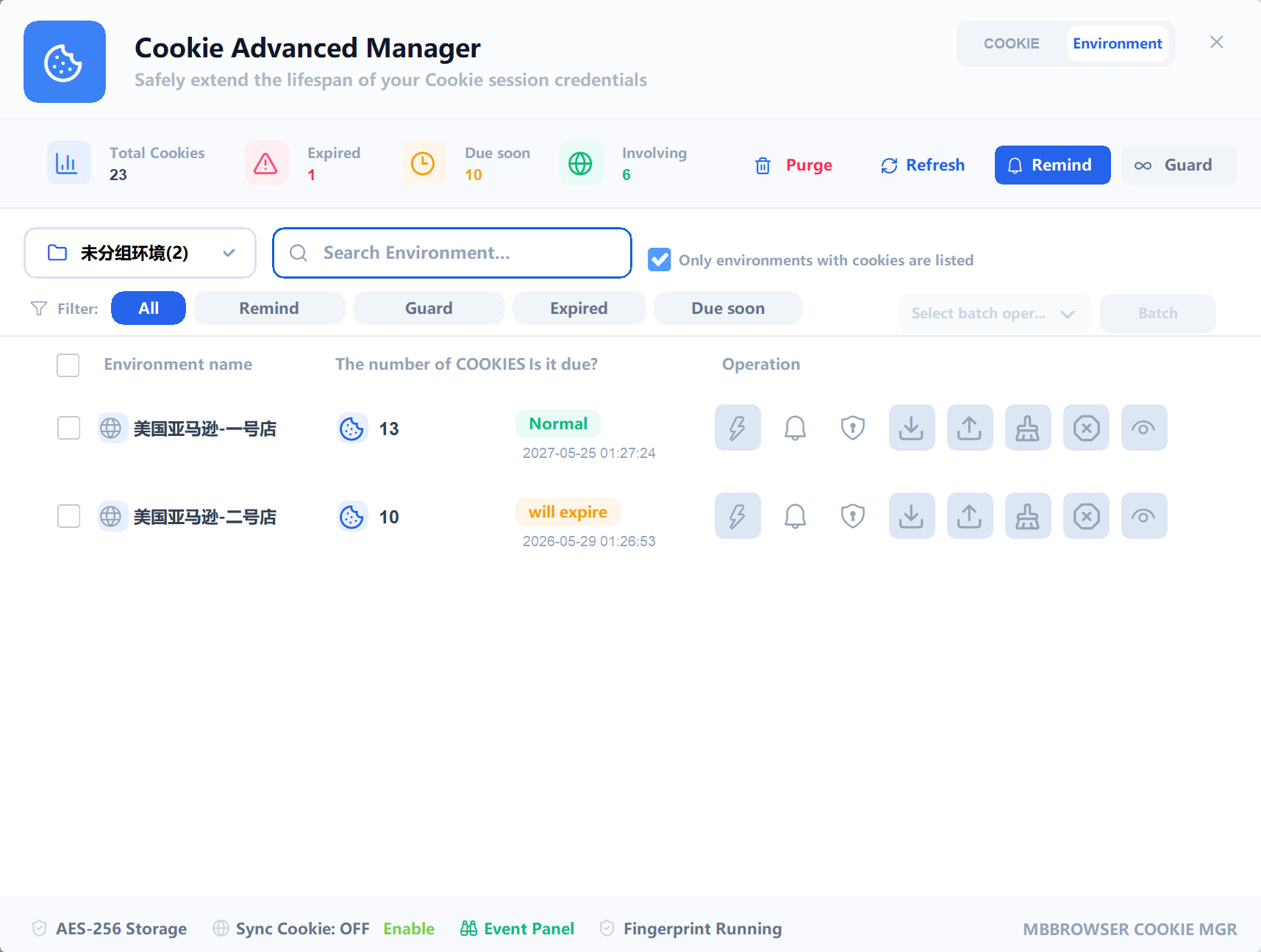
| Area | Purpose |
|---|---|
| View switch | Switch between Cookie view and Environment view |
| Group selector | View environments by group |
| Search box | Search Cookies or environment names depending on the current view |
| Quick filters | Filter reminder, guard, expired, or expiring states |
| List area | Shows Cookie records or environments |
| Action buttons | Import, export, delete, remind, guard, and batch actions |
Cookie View
Cookie view is used for individual Cookie records: checking domains, copying values, deleting records, importing, and exporting.
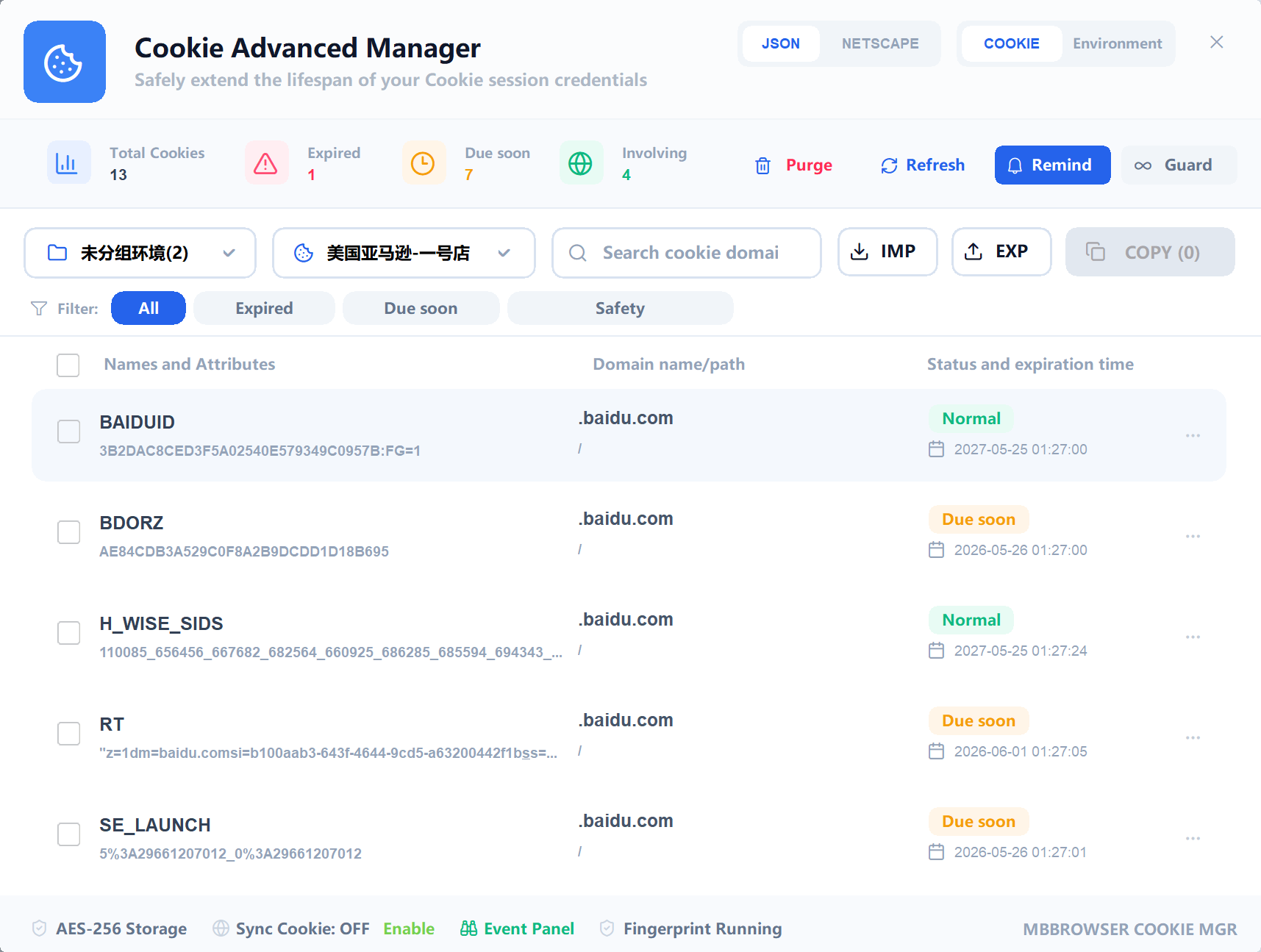
In Cookie view you can:
- View Cookie records for the selected environment.
- Search by Cookie name, domain, or path.
- Check expiration status and time.
- Edit common and advanced Cookie fields.
- Delete unnecessary Cookies.
- Copy Cookie content for backup or diagnosis.
- Import JSON or Netscape format Cookies.
- Export Cookies to local files.
- Clean expired Cookies.
JSON / Netscape Format
Use JSON when the Cookie data comes from browser tools, extensions, or automation systems. Use Netscape when the data comes from traditional Cookie files or account handover files.
The format switch is hidden in Environment view because that view focuses on environment health instead of individual Cookie format.
Environment View
Environment view is designed for batch operations. It shows Cookie health by browser environment instead of individual Cookie records.
It usually displays:
- Environment name.
- Cookie count.
- Expired Cookie state.
- Expiring Cookie state.
- Reminder enabled state.
- Smart guard state.
- Available actions.
Use quick filters to show reminder-enabled, guard-enabled, expired, or expiring environments. For daily operations, check “Expired” and “Expiring” first.
Import Cookies
Click Import to open the Cookie import dialog.
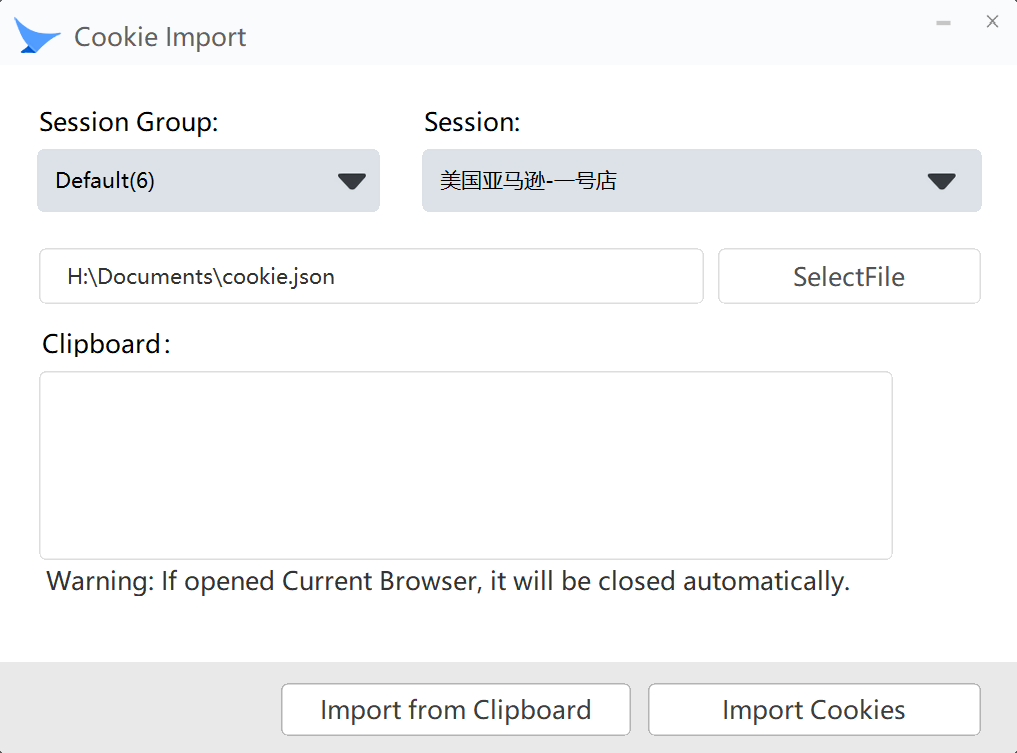
Common import methods include local file import, clipboard import, JSON format, and Netscape format.
Before importing, confirm that:
- The target environment is correct.
- The selected format matches the data.
- Cookie domains match the target website.
- The data source is trusted.
Security
Cookies may contain login credentials. Do not import or share Cookie data from unknown sources.
Export Cookies
Click Export to open the Cookie export dialog.
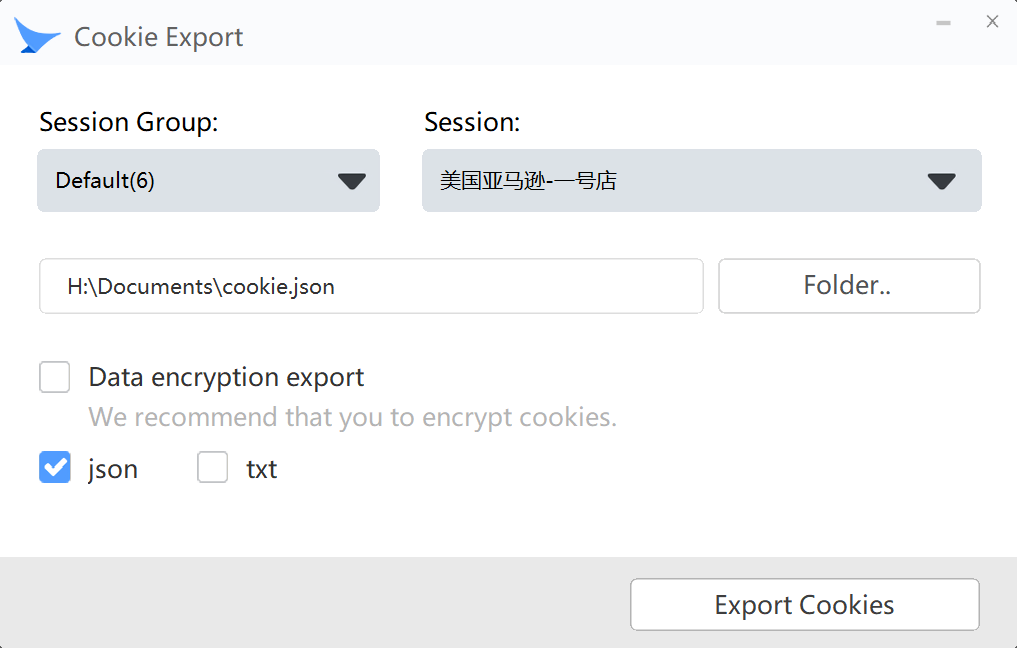
Export is useful for account handover, backup, automation testing, support diagnosis, and migration between devices.
Keep exported Cookie files secure. If encryption is available, enable it. Record environment name, account note, and export time for team handover.
Cookie Expiry Reminders
Cookie expiry reminders help you act before login state is lost.
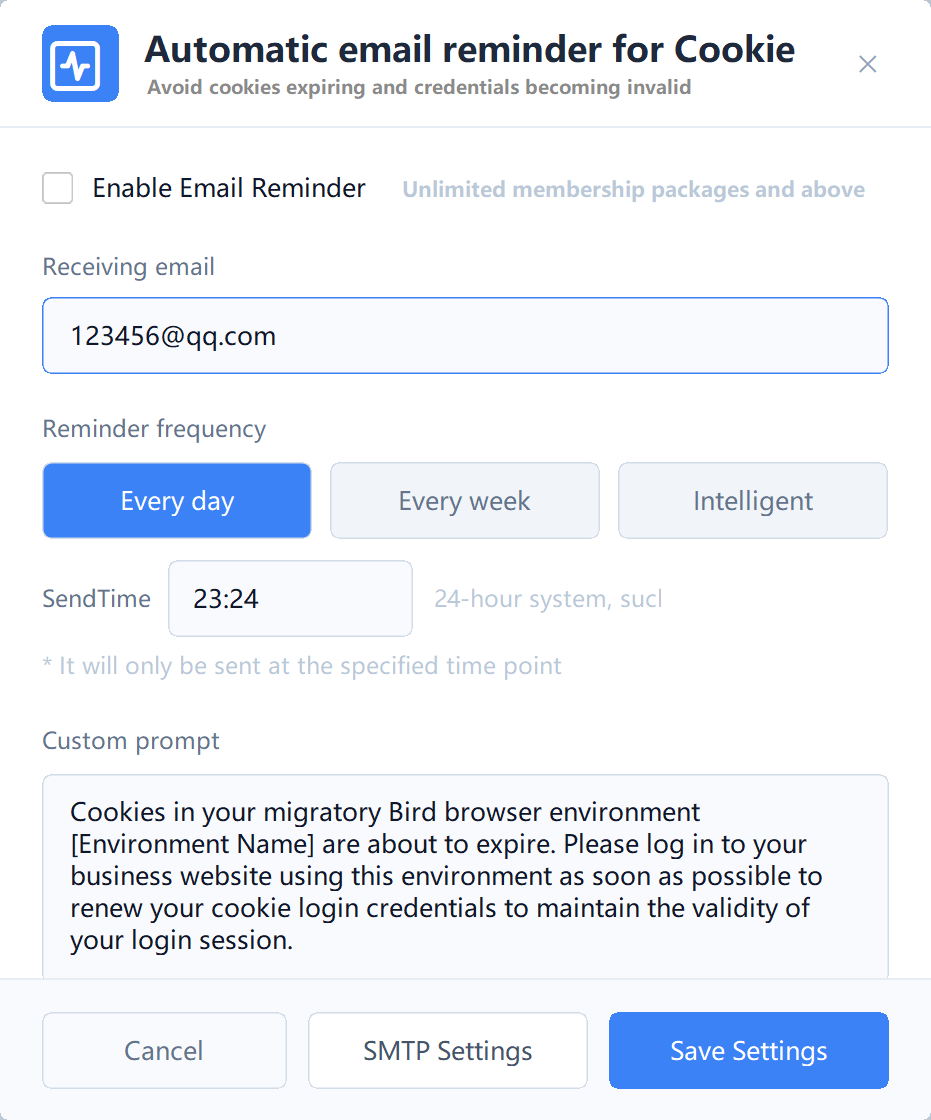
You can enable reminders for one environment or select multiple environments in Environment view and add them in batch. Saved reminder states are displayed again after reopening the client.
When configuring reminders, check:
- Whether reminder is enabled.
- Reminder frequency or fixed time.
- Recipient email address.
- Whether a test email should be sent.
When you receive a reminder, open the environment, visit the target website, log in if required, then refresh Cookie statistics in the panel.
SMTP Email Service
To receive email reminders, configure SMTP first.
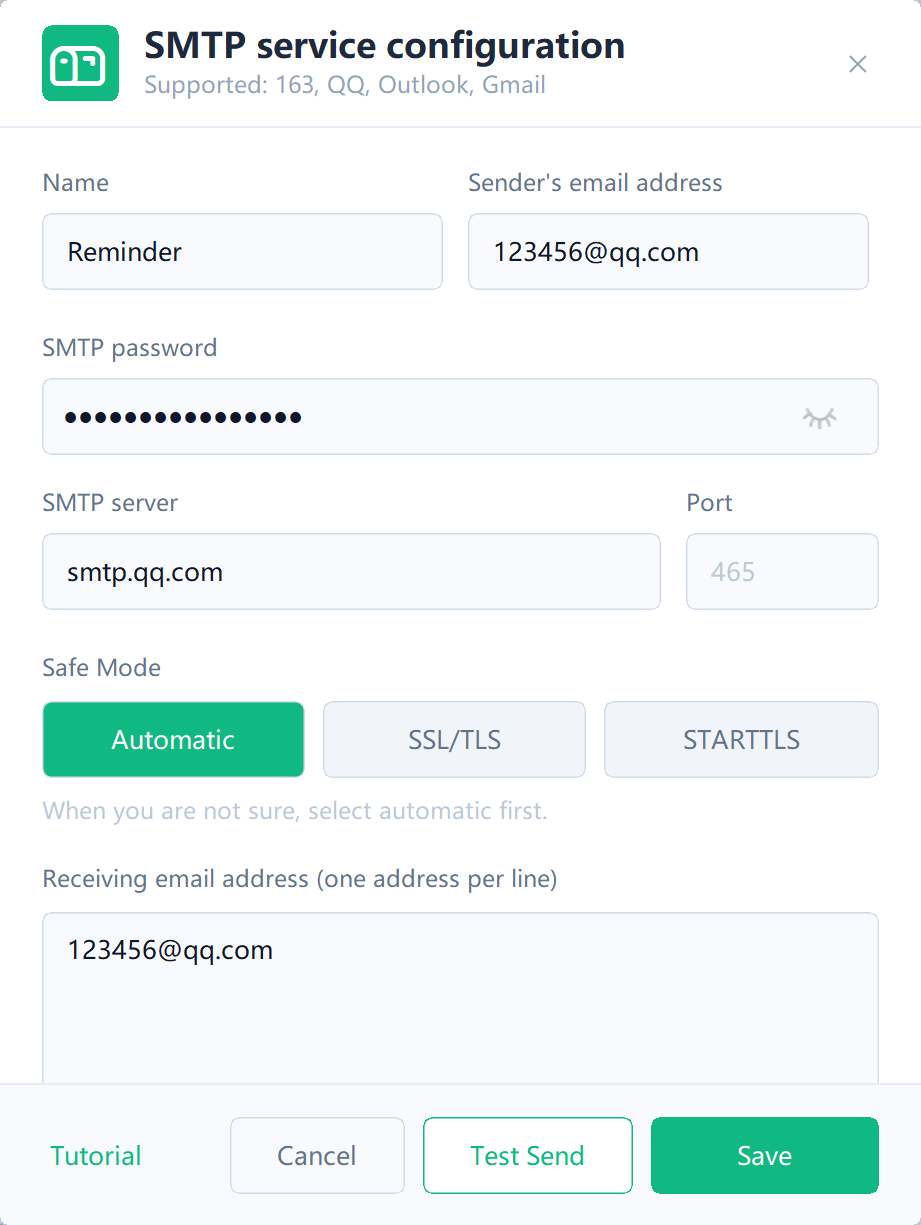
| Field | Description |
|---|---|
| SMTP server | Server address from your mail provider |
| Port | Usually 465, 587, or provider-specific |
| Sender email | Email account used to send reminders |
| Password / token | SMTP authorization code or password |
| Recipients | Email addresses receiving reminders |
| SSL/TLS | Choose according to provider requirements |
Always send a test email after configuration. If it fails, check SMTP service availability, authorization code, port, firewall, and spam folder.
Smart Guard
Smart guard continuously tracks Cookie health for important environments. You can add one environment or multiple selected environments to smart guard, and remove them later when no longer needed.
| Feature | Focus |
|---|---|
| Expiry reminder | Notify users when Cookies are expiring or expired |
| Smart guard | Continuous Cookie health tracking for important environments |
Batch Operations
Environment view supports batch actions:
- Batch add to expiry reminder.
- Batch remove from expiry reminder.
- Batch add to smart guard.
- Batch remove from smart guard.
- Batch process expired or expiring environments.
Filter the list first before selecting environments to avoid accidental operations.
Logs and Troubleshooting
Important actions are written to logs, including import, export, copy, edit, delete, extension, expired cleanup, reminder changes, smart guard changes, SMTP saving, test sending, and email delivery results.
If reminders are configured but emails are not received, check:
- SMTP test result.
- Recipient address.
- Spam folder.
- Whether any Cookie is actually expiring or expired.
- Whether fixed-time reminder has reached its trigger time.
- Local logs for delivery errors.
Recommended Workflow
- Open Advanced Cookie Manager.
- Switch to Environment view.
- Filter Expired and Expiring environments.
- Add important environments to expiry reminders.
- Configure and test SMTP.
- Add core accounts to smart guard.
- Re-login in the corresponding environment when reminded.
- Refresh statistics and confirm the risk is resolved.
- Export important Cookies or perform data backup regularly.
- Check logs or contact support if an issue remains.