
Model Selection and Provider Configuration
MBAgent itself is not model-locked — you can use Mbbrowser official models, third-party models such as OpenAI / Claude / Gemini / DeepSeek, or your custom gateway or local model. This article details how to choose and configure models.
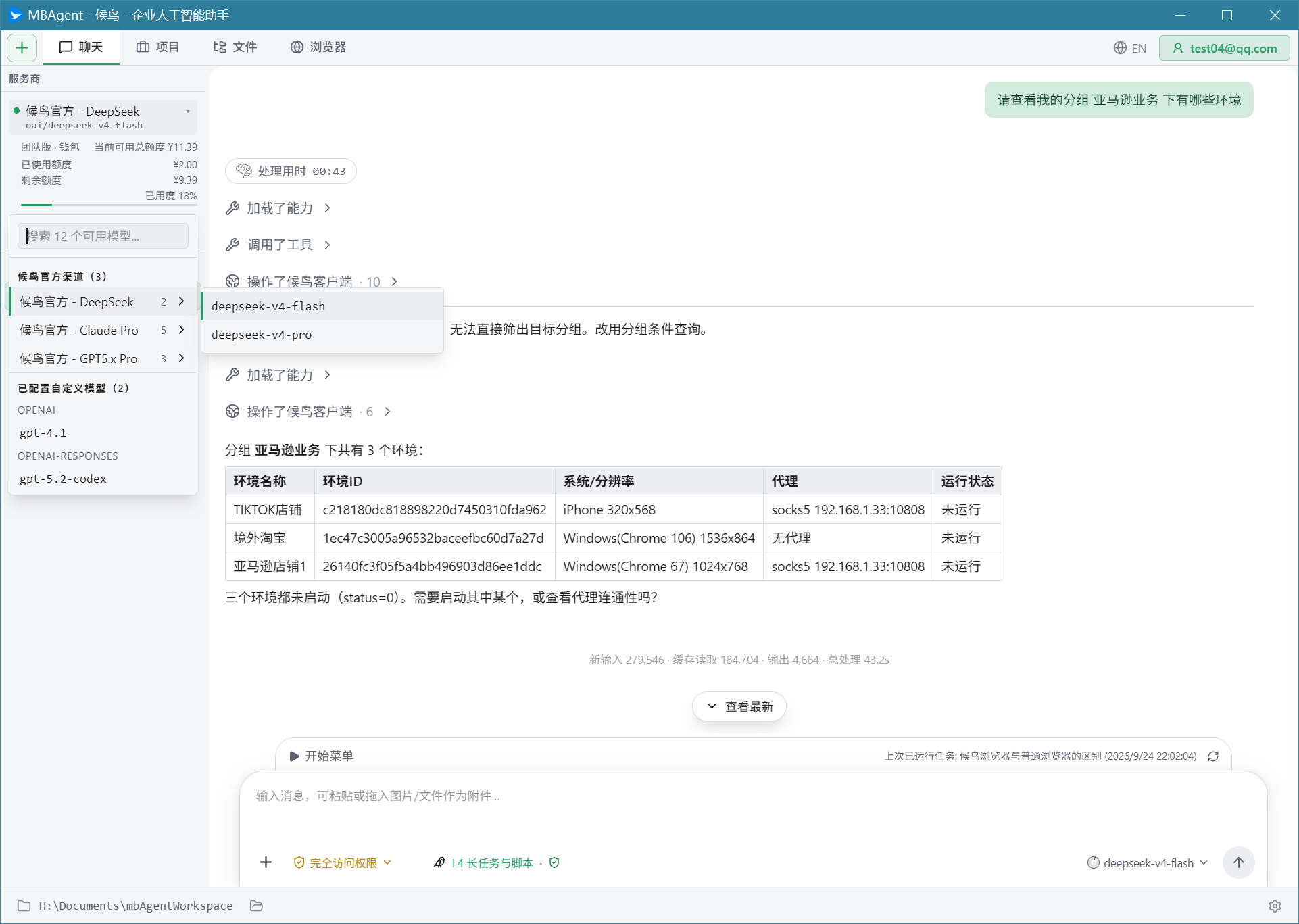
1. What Is a Model?
A model is the AI that actually "thinks" behind MBAgent. MBAgent is the shell; install any brain, and it thinks that way.
Different models have very different capabilities:
| Model | Strengths | Weaknesses | Price |
|---|---|---|---|
| deepseek-v4-flash | Fast response, daily chat, ultra-low price | Complex reasoning | ⭐ Ultra-cheap |
| deepseek-v4-pro | Deep reasoning, Chinese understanding | Weak multimodal | ⭐⭐ Cheap |
| gpt-5.4 | General chat, fast Q&A | Complex reasoning | ⭐ Cheap |
| gpt-5.5 | Comprehensive reasoning, code, general | Higher price | ⭐⭐ Mid |
| gpt-5.6-sol | Complex reasoning, scientific computing | Slower response | ⭐⭐⭐ Mid-high |
| gpt-5.6-terra | Long context, multi-step tasks | High price | ⭐⭐⭐ Mid-high |
| gpt-5.6-luna | Ultra-long context, deep analysis | Low price | ⭐⭐ Cheap |
| claude-sonnet-5 | Long-form writing, code, medium tasks | Higher price | ⭐⭐⭐ Expensive |
| claude-opus-5.5 | Complex tasks, deep reasoning, long-doc analysis | High price | ⭐⭐⭐ Expensive |
| claude-fabel-5.1 | Multimodal, vision, image-text combination | Weaker Chinese | ⭐⭐⭐ Expensive |
TIP
Beginner recommendation: deepseek-v4-flash or gpt-5.4 — fast, cheap, covers 80% of daily tasks. Switch to a stronger model once familiar.
2. What Is a Provider?
A Provider is the AI model vendor. The same model (e.g. gpt-5) may be provided by multiple Providers:
gpt-5 ──┬── OpenAI (official)
        ├── Mbbrowser official (relay, price advantage)
        ├── Azure AI Foundry
        └── Your custom gateway
MBAgent has multiple built-in Providers; each has different model lists, prices, and stability.
NOTE
Settings entry: Click the ⚙️ "Settings" button at the top right of the Chat tab → go to "Provider Configuration" → manage all Providers here. Mbbrowser official models are auto-recognized; other Providers require manual API Key entry.
Screenshot note: Complete Provider configuration popup and vendor selection panel screenshots will be progressively supplemented in v1.x; the current doc is function-led; please follow the text instructions.
Built-in Providers
| Provider | Models Served | Price Advantage | Use Case |
|---|---|---|---|
| Mbbrowser official | Full series (incl. deepseek-v4-flash, deepseek-v4-pro, gpt-5.4, gpt-5.5, gpt-5.6-sol, gpt-5.6-terra, gpt-5.6-luna, claude-sonnet-5, claude-opus-5.5, claude-fabel-5.1) | ⭐ Cheapest, links with Mbbrowser membership package | First choice for all users |
| OpenAI official | Full OpenAI series | ⭐ High price | Need native vendor support |
| Anthropic official | Full Claude series | ⭐⭐ Mid | Claude power users |
| Google Gemini official | Gemini / Gemma | ⭐⭐ Mid | Multimodal tasks |
| DeepSeek official | Full DeepSeek series | ⭐ Cheap | Budget-sensitive scenarios |
| DashScope (Alibaba) | Full Qwen series | ⭐⭐ Mid | Chinese scenarios |
| Custom OpenAI-compatible gateway | Custom | Custom | Enterprise users |
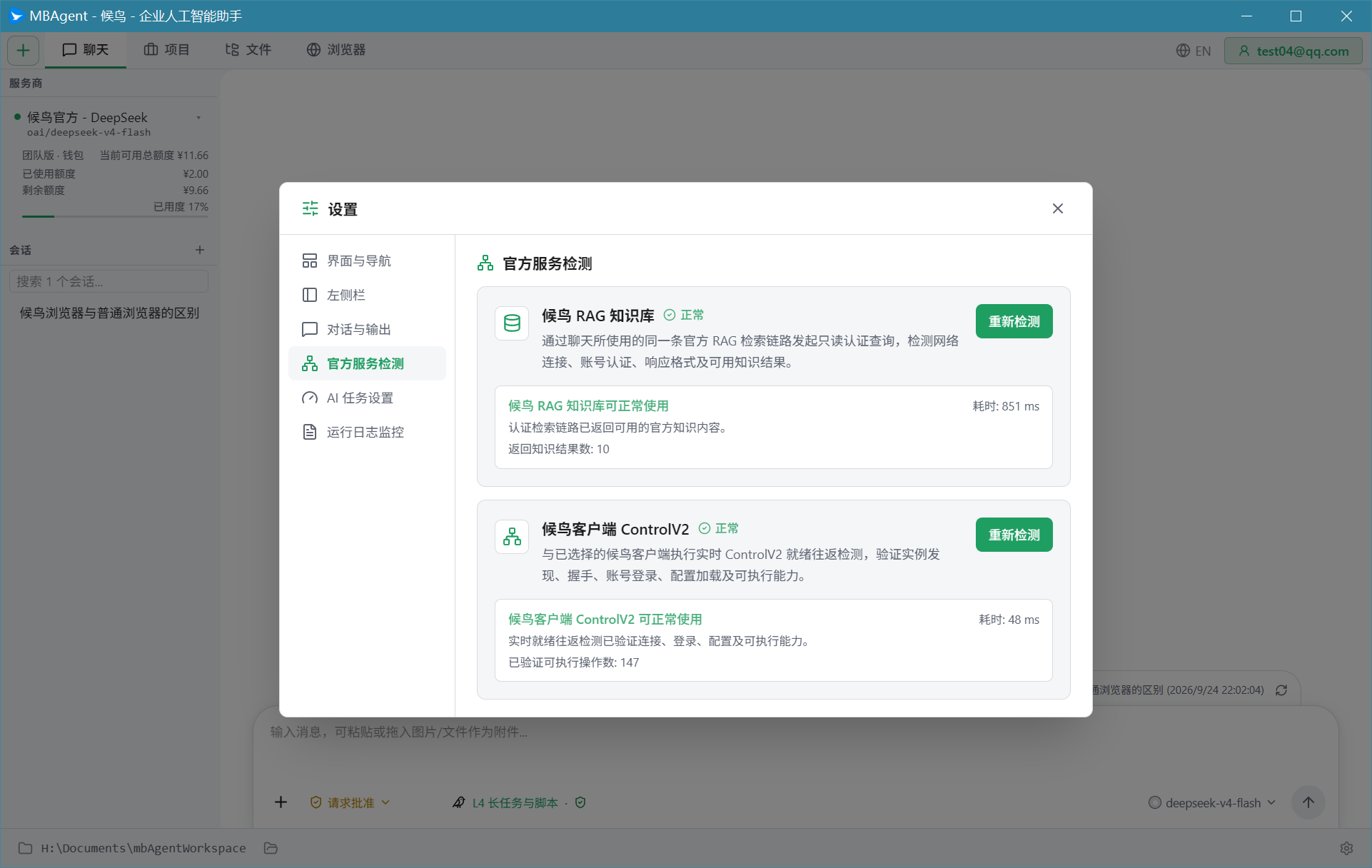
3. Mbbrowser Official Model: The Most Recommended Choice
Mbbrowser official is MBAgent's default Provider, with the following advantages for Mbbrowser users:
1. Bundled with Mbbrowser Membership Package
Mbbrowser membership packages (Free member / Trial member / Basic member / Personal Custom / Personal Unlimited / Team) include AI model quota. Using Mbbrowser official models deducts directly from the package quota.
TIP
View your current quota:
- Click the "Account" button at the top right of the Chat tab
- Select "My AI Quota" from the dropdown
- The Mbbrowser Console auto-opens, showing remaining quota
2. One-Click Access to Mainstream Models
Mbbrowser official has already integrated deepseek-v4-flash, deepseek-v4-pro, gpt-5.4, gpt-5.5, gpt-5.6-sol, gpt-5.6-terra, gpt-5.6-luna, claude-sonnet-5, claude-opus-5.5, claude-fabel-5.1 and other mainstream models. You don't need to apply for an API Key from each vendor yourself; just pick them in MBAgent.
3. Top-up and Invoice
Mbbrowser official models support centralized top-up, expense viewing, and invoicing through the Mbbrowser Console.
4. How to Switch Models
Method 1: Model Selector at the Top of the Chat Tab
NOTE
Screenshot note: Clicking the model selector at the top of the Chat tab will pop up the Mbbrowser official model dropdown list; screenshots will be supplemented in v1.x. Please follow the text steps below.
- Open the Chat tab
- Click the Model selector at the top (where the current model name is displayed)
- Pick the model you want from the popup list
- Takes effect immediately; next input uses the new model
Method 2: Compare Before Picking
If you are torn between multiple models, use the comparison feature:
- Open the model selector
- Select 2-4 candidate models
- Click the "Compare" button
- See each model's context length / price / speed / capability tags
- Decide and pick one
NOTE
Screenshot note: Detailed screenshots of the comparison panel (multi-model horizontal comparison view, each model's price curves, capability radar charts, etc.) will be supplemented in v1.x.
Method 3: Set as Default
If you always use the same model, set it as default:
- Click the "Settings" ⚙️ at the top right
- Go to "Default Model" option
- Pick your commonly used model
- New sessions automatically use this model
5. Add a Custom Provider
If you use a third-party LLM relay or a custom gateway, you can add a custom Provider.
Step 1: Get API Info
You need:
- API Key: The key the vendor gives you (typically generated in the vendor's console)
- Base URL: The endpoint address the vendor provides (e.g.
https://api.example.com/v1)
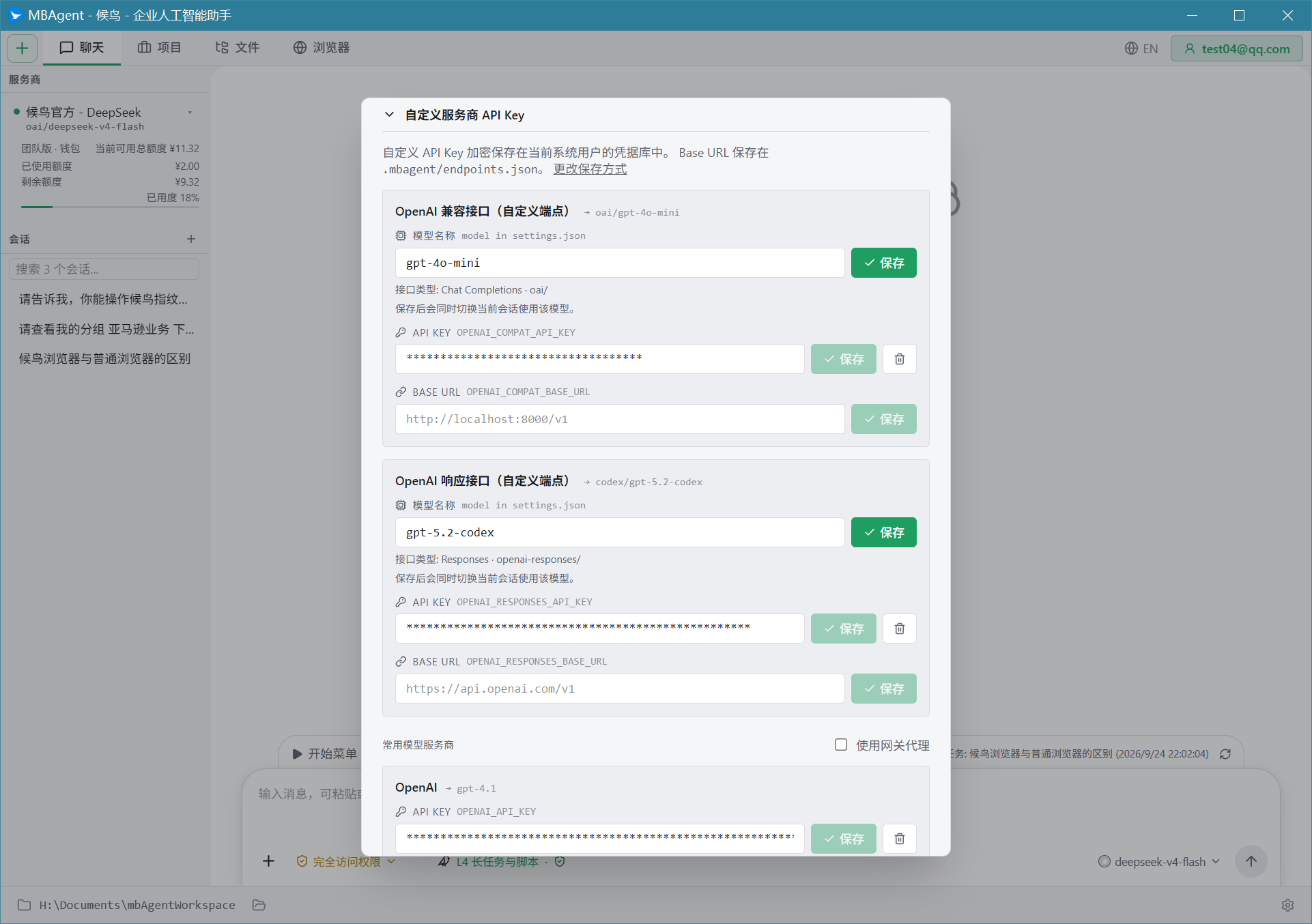
Step 2: Configure in MBAgent
- Click the "Settings" ⚙️ at the top right
- Select the "Provider" tab
- Click "Add Custom Provider"
- Fill in:
- Provider name (any, e.g. "My Relay")
- API Key
- Base URL
- Supported model list (auto-pulled from Base URL)
- Click "Save"
Step 3: Test Connection
- After saving, click "Test Connection"
- MBAgent will send a minimal request to verify
- "Connection successful" displayed → ready to use
IMPORTANT
API Key security: MBAgent's API Key is stored by default in the local Credential Manager (Windows Credential Manager), and is not uploaded to Mbbrowser servers. However, please make sure your computer itself is secure.
6. Model Capability Details
Several key parameters when choosing a model:
1. Context Window
How much content the model can "read" at once:
| Length | Equivalent | Suitable Scenario |
|---|---|---|
| 8K | ~16 A4 pages | Short chat, simple Q&A |
| 32K | ~64 pages | Normal chat, code reading |
| 128K | ~256 pages | Long doc analysis, complex codebases |
| 200K | ~400 pages | Whole book, deep research |
| 1M+ | Extreme | Novel volume, gigantic code |
TIP
Just enough is enough: 32K for daily chat; 128K for long PDF analysis; 200K+ for research tasks.
2. Multimodal
Models that "see" images can recognize image content in multimodal scenarios:
- ✅ Diagnose errors from screenshots
- ✅ Generate copy from product images
- ❌ Models without image support are text-only
The "Vision" tag listed by Mbbrowser official indicates multimodal capability.
3. Tool Use / Function Calling
All models listed in MBAgent support tool calling — this is the prerequisite for MBAgent to "do things".
4. Reasoning Capability
Some models (e.g. o1, claude-opus-4 extended thinking) support deep reasoning, taking longer to think but with more accurate results. Suited for:
- Complex math problems
- Multi-step planning
- Hard bug troubleshooting
7. Price and Quota Management
View Expense Details
- Click the "Account" button at the top right
- Select "Expense Details"
- The Mbbrowser Console displays for each call: model / Token count / cost / time
Cost-Saving Tips
- ✅ Use small models for daily tasks:
gpt-5-mini/deepseek-v3for 80% of tasks - ✅ Upgrade for complex tasks: Only swap to
claude-opus-4when really needed - ✅ Close thinking process: In Settings → Preferences, close "Show thinking process" to save Tokens
- ✅ Context compression: Use
/compactto compress history for long sessions - ❌ Don't open multiple sessions simultaneously: Each session consumes Tokens independently
Package Recommendations
| Your Usage | Recommended Package |
|---|---|
| Occasional, just trying | Free member |
| < 50 chats per day | Basic member |
| < 200 chats per day | Personal Custom |
| Heavy usage, enterprise | Personal Unlimited / Team |
8. FAQ
Q1: I switched Provider but it's still the same model; why is the cost different?
Different Providers price the same model differently:
- Official vendors (e.g. OpenAI) are generally the most expensive
- Mbbrowser official relay has discounts
- Self-built gateway price is set by you
Q2: The model I want isn't in the list — what to do?
Two ways:
- Not in Mbbrowser official: contact Mbbrowser customer support to request integration
- Self-built Provider: use "Add Custom Provider" to integrate any OpenAI-compatible interface
Q3: After switching models, are my historical conversations still there?
✅ Yes. History conversations are saved by "session" dimension, independent of model. You can:
- Start a new session in A model
- Switch model
- Start a new session in B model
- The two sessions don't interfere with each other
Q4: Can the same message be sent to multiple models simultaneously?
✅ Yes:
- Type the message in the input box
- Hold
Ctrland click multiple models - Models will reply side-by-side
- Easy to compare effects
Next: Task Panel Explained → Handle complex multi-step tasks.