
Full Feature Menu Overview
MBAgent is a multi-tab workstation, with each tab mapping to a feature. This article systematically introduces each tab's purpose.
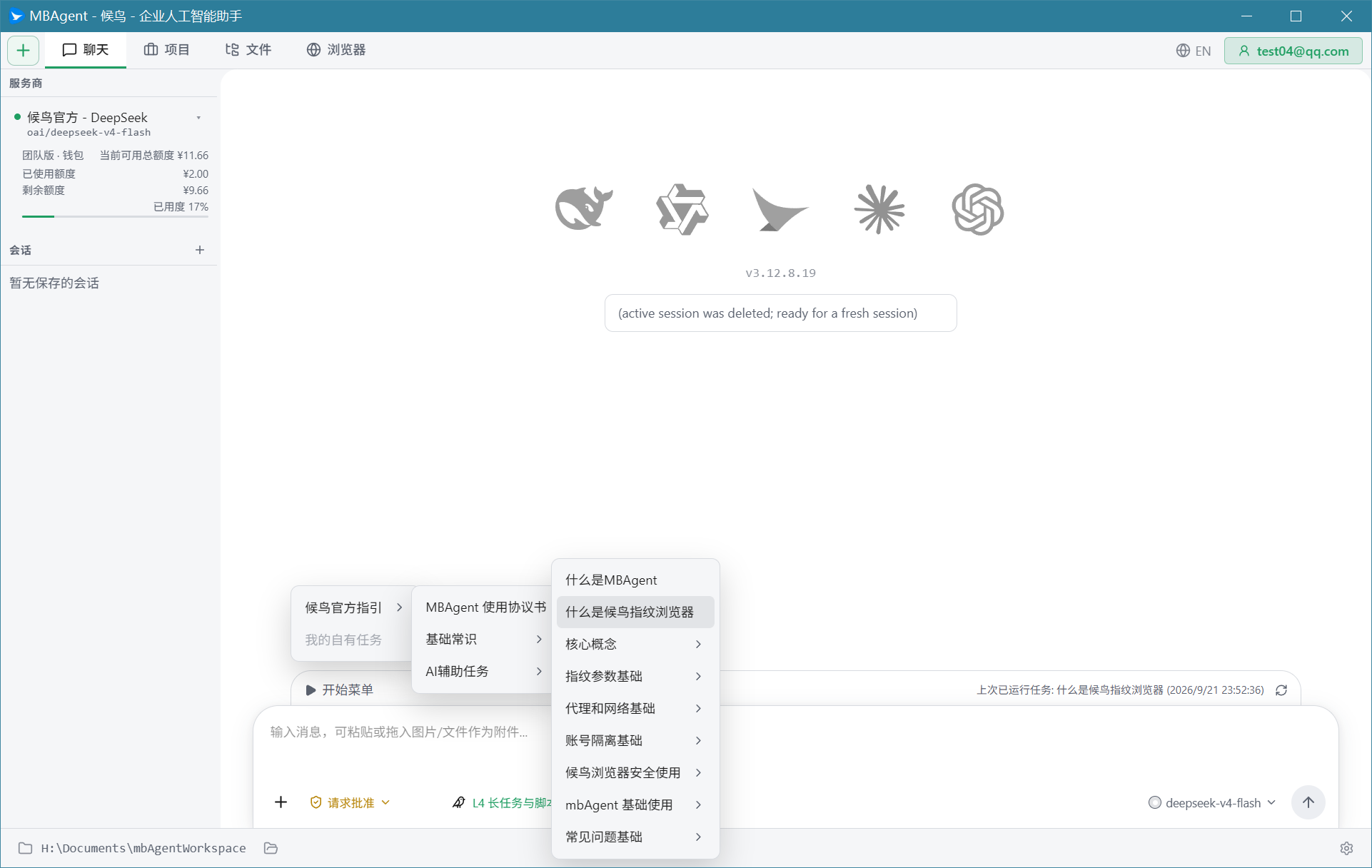
1. Top Tab Bar (8 Core Tabs)
MBAgent's top navigation has 8 tabs, from left to right:
1. Chat
The most-used tab page, the main entry for conversation with AI.
- Ask questions in natural language
- Upload images, files
- View history conversations
- Switch AI model
- Coordinate with Mbbrowser operations
📖 See First Time Using MBAgent
2. Projects
Manage reusable projects completed by AI.
- Centralized management of RPA, Go, Rust, C++, Script and various language finished programs
- AI actively helps you register projects (purpose, entry file, run command)
- Project library: cross-project categorization management
- Backup, archive, edit of reusable projects
NOTE
Screenshot description: Screenshots of the Projects tab (left project list + center project details + right entry file) will be progressively supplemented in v1.x.
Use scenarios:
- "AI helped me write a Python script that I want to run again later"
- "I have over a dozen RPA automation scripts to manage uniformly"
3. Terminal
Agent Terminal view, displaying ANSI streams and command output.
- Suited for users who like command-line style
- Real-time display of AI-executed commands and output
- Supports slash command output
Use scenarios:
- Developers quickly validate scripts
- View AI-executed underlying commands
4. Files
File browser for the workspace.
- Tree-style directory browsing
- CodeMirror code editor
- Markdown / HTML / EPUB preview
- Image, PDF, and other media file previews
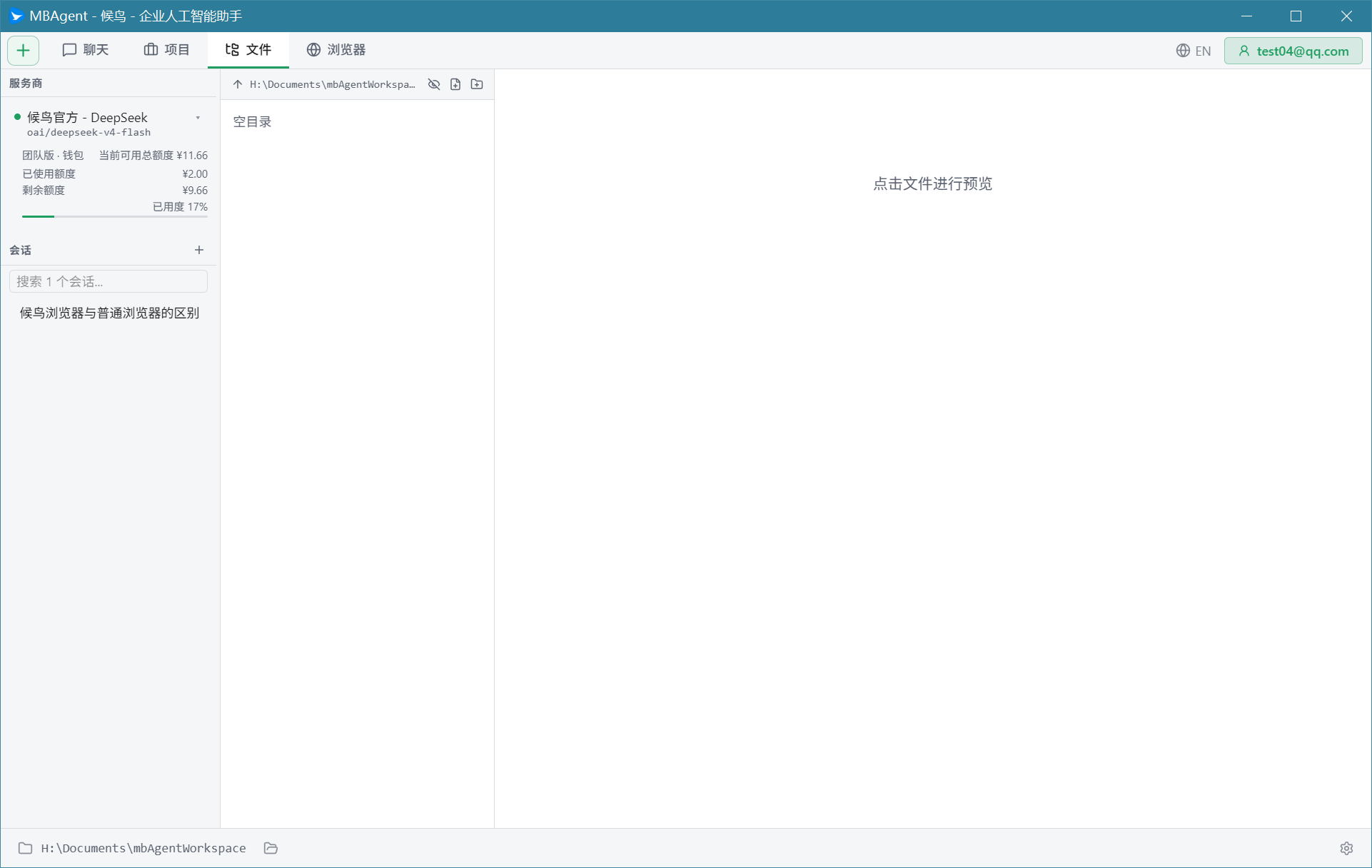
Use scenarios:
- Browse MBAgent working directory
- Directly edit code or documents
- Preview AI-generated files
5. Team
Agent Team status view.
- Multi-agent collaboration (lead / teammate)
- Real-time status of team members
- Shared mailbox and task queue
Use scenarios:
- Large complex tasks requiring multi-person collaboration
- Multi-angle analysis of the same problem
📖 See the follow-up article "Agent Team Collaboration"
6. UI
GUI Shell workspace, can load embeddable third-party UI.
- Domain frontends loaded via iframe
- Controlled by GUI Shell Skill
Use scenarios:
- Load Mbbrowser RAG knowledge base management UI
- Load Mbbrowser client ControlV2 debugging UI
7. Shell
Real-time Shell terminal, based on xterm.js.
- Launch your
$SHELL(cmd / PowerShell / bash) - Complete command-line interaction
- Suited for scenarios requiring direct OS operation
8. Browser
Mbbrowser Control, provided by Playwright MCP.
- Display Mbbrowser CDP connection status
- Display activity records
- Takeover / screenshot buttons
- Right-side input box to issue operations to Mbbrowser agent
Use scenarios:
- Take over Mbbrowser page to view real-time screen
- Let AI directly operate Mbbrowser
📖 See Mbbrowser ControlV2 Integration
2. Left Sidebar Entries
The left side of the Chat tab is a multi-function sidebar, including:
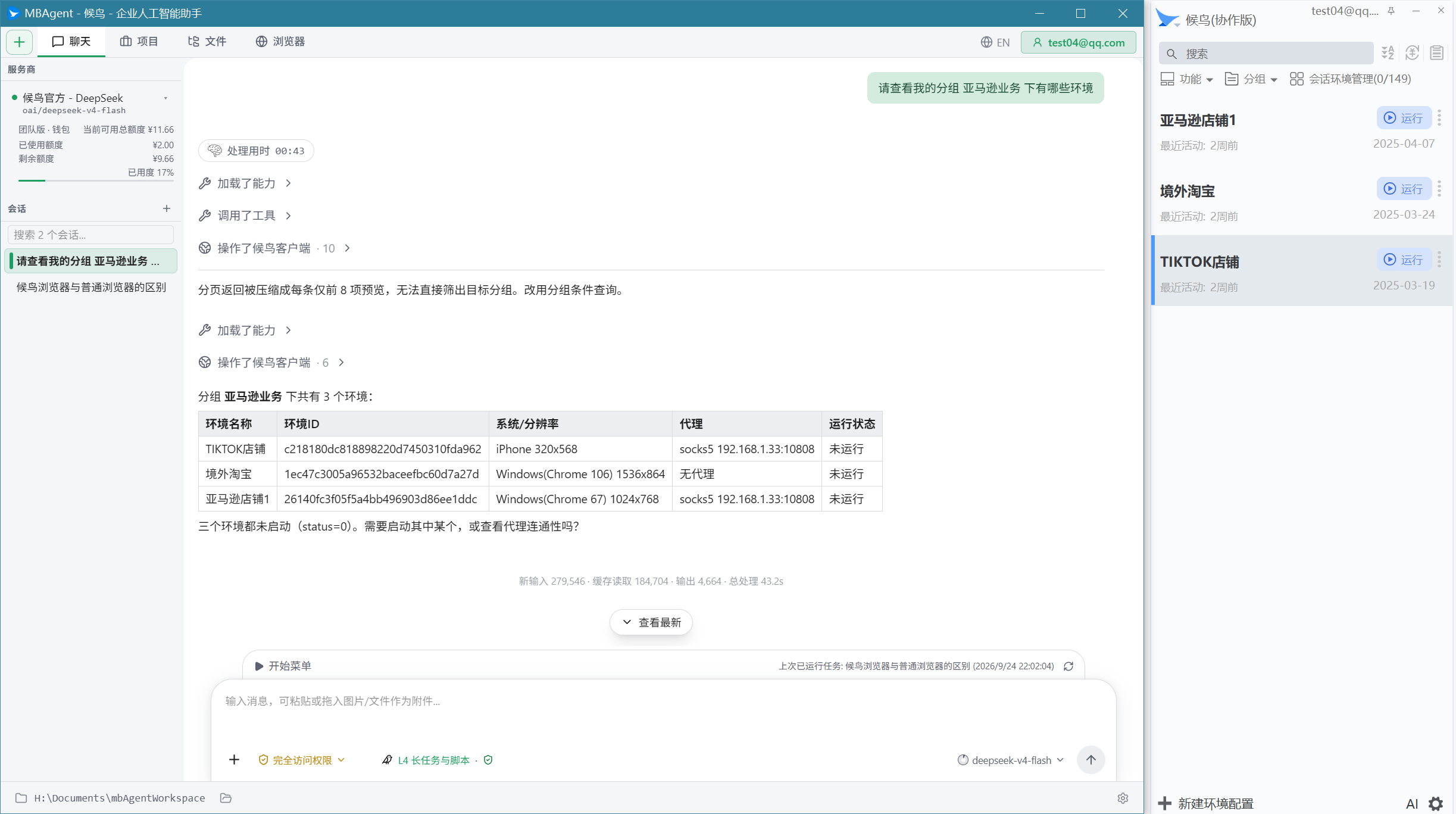
1. Provider Selector
Displays current Provider and model at the top; click to switch:
- Provider: Mbbrowser official / OpenAI / Anthropic / Gemini / Custom
- Model: Specific model under current Provider
- Takes effect immediately after switching
2. Session List
Displays all your historical sessions:
- Reverse-chronological by update time
- Pinned sessions
- Auto-generated title (based on the first sentence)
- Message count, model, creation time
- Delete / rename / export
3. AI Local Memory Bank
Displays long-term memories saved across sessions:
- Your preferences (writing style, common terms)
- Important info (Mbbrowser account IDs, business rules)
- AI auto-accumulated + manually added by you
📖 See AI Memory Bank Usage
4. Local Knowledge Base (KMS)
Displays knowledge bases you create in MBAgent:
- User scope / project scope
- Create, mount, browse, search
- Auto-retrieved in AI conversations
5. MCP Services
Displays connected Model Context Protocol services:
- stdio / HTTP transport
- OAuth auth
- Tool list
- Enable / disable
6. Mbbrowser RAG Knowledge Base
Remote knowledge base retrieval provided by Mbbrowser official:
- Read-only authenticated queries
- Mbbrowser business-related knowledge
- Real-time availability detection
7. Mbbrowser Client ControlV2
Protocol status of communication between MBAgent and Mbbrowser:
- Instance discovery / handshake / account login
- Config loading
- Executable capability detection
8. Mbbrowser Official Account Quota
AI model quota under Mbbrowser membership:
- Used / total / remaining
- Usage progress bar
- Top-up entry
3. Bottom Input Box
Every tab page has a unified input box at the bottom:
+button: Upload attachments📎button: Paste from clipboard- Main input box: Supports Chinese long text, multi-line
- Send button / Enter: Send
- Shift + Enter: New line
Esc: Cancel current reply
"Magic" Prefixes in the Input Box
The input box supports some special prefixes to trigger different functions:
| Prefix | Function |
|---|---|
/ | Trigger slash command popup (input commands like /help, /model, /memory) |
> | Enter shell command mode (execute commands directly, bypassing AI) |
! | Enter bash mode |
4. Right Sidebar Entries
Some tab pages have auxiliary views on the right:
1. Plan
Plan mode view:
- Plan steps submitted by the model
- User approve / skip / retry
- Real-time step status update
2. Goal
Long-term goal status:
- Current goal description
- Progress percentage
- Sub-task list
- Complete / blocked / failed status
3. Todo
Structured todo view:
- Todo list written by AI
- Completion status
- Timestamp
4. Research
Research task status:
- Multi-stage research pipeline
- Source / score / result page
- Cancellable, continuable
5. Background Agents
Background agents created by /agent command:
- Parallel with the main conversation
- Independent session, independent task
- Notify main conversation when done
6. KMS Browsing
Local knowledge base browsing:
- Page tree
- Full-text search
- Relation graph
5. Top-Right Settings Entry
There is a "Settings" ⚙️ button at the top right of the Chat tab; click to enter settings:
- Default model
- Provider configuration
- Credential management
- Interface and navigation
- Conversation and output
- AI task settings (task budget)
- Official service detection (Mbbrowser RAG / ControlV2)
- Language (中文 / English / Deutsch)
- About MBAgent
📖 See Settings Overview
6. Keyboard Shortcuts
| Shortcut | Function |
|---|---|
Enter | Send message |
Shift + Enter | New line |
Esc | Cancel current reply |
Ctrl + N | New session |
Ctrl + K | Open slash command popup |
Ctrl + / | Toggle sidebar |
Ctrl + Shift + U | Exit fullscreen |
↑ / ↓ | History input |
7. Common Slash Commands
| Command | Function |
|---|---|
/help | Help |
/version | Version info |
/model | Switch model |
/models | View available models |
/clear | Clear current session |
/compact | Compact history |
/sessions | View history sessions |
/memory | Manage AI memory bank |
/kms | Manage knowledge base |
/mcp | Manage MCP services |
/plugin | Manage plugins |
/skill | Manage skills |
/schedule | Manage scheduled tasks |
/goal | Long-term goal |
/research | Research task |
/workflow | Workflow scripts |
/permissions | Permission settings |
/plan | Enter plan mode |
/dream | Distill knowledge from history sessions |
8. Customize Tab Bar
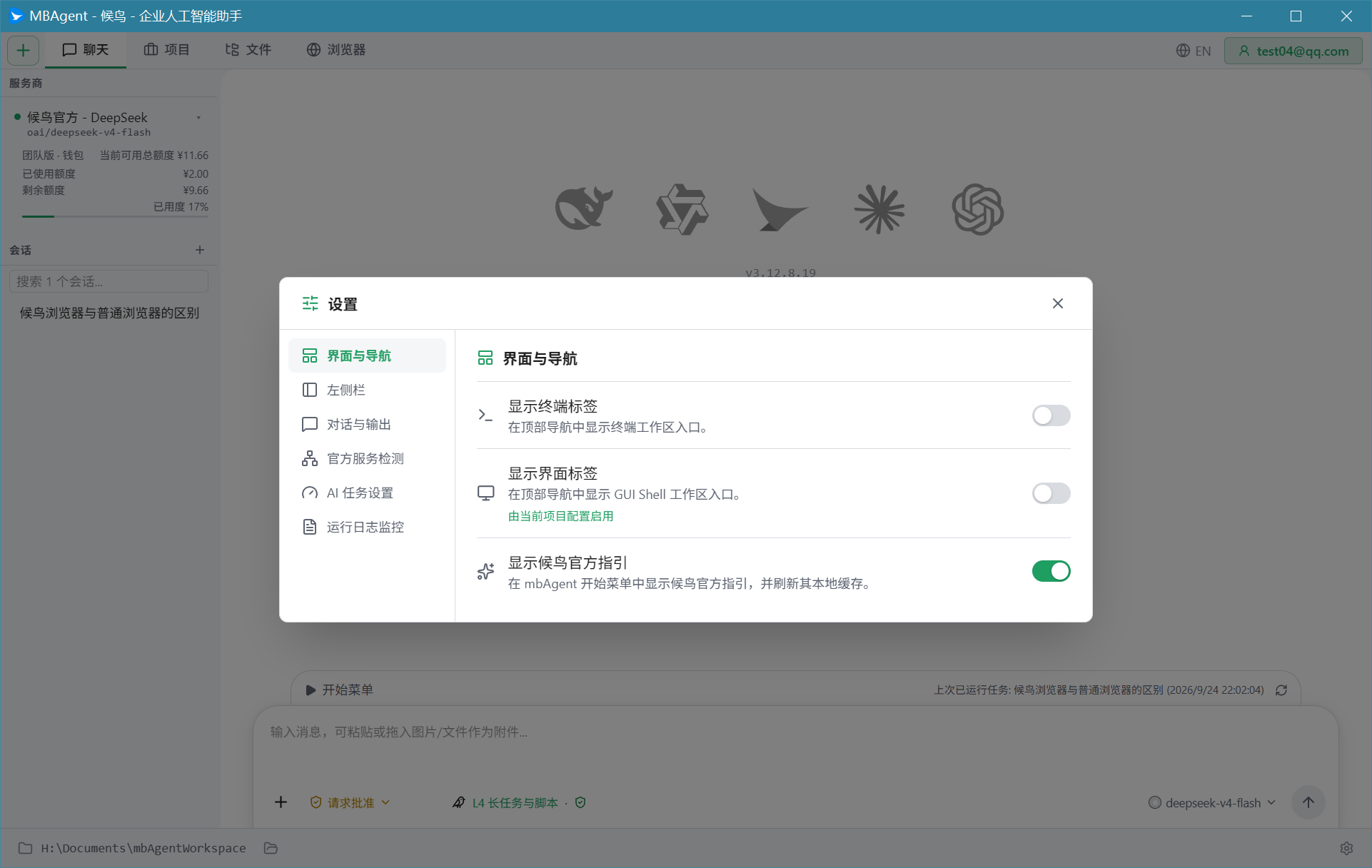
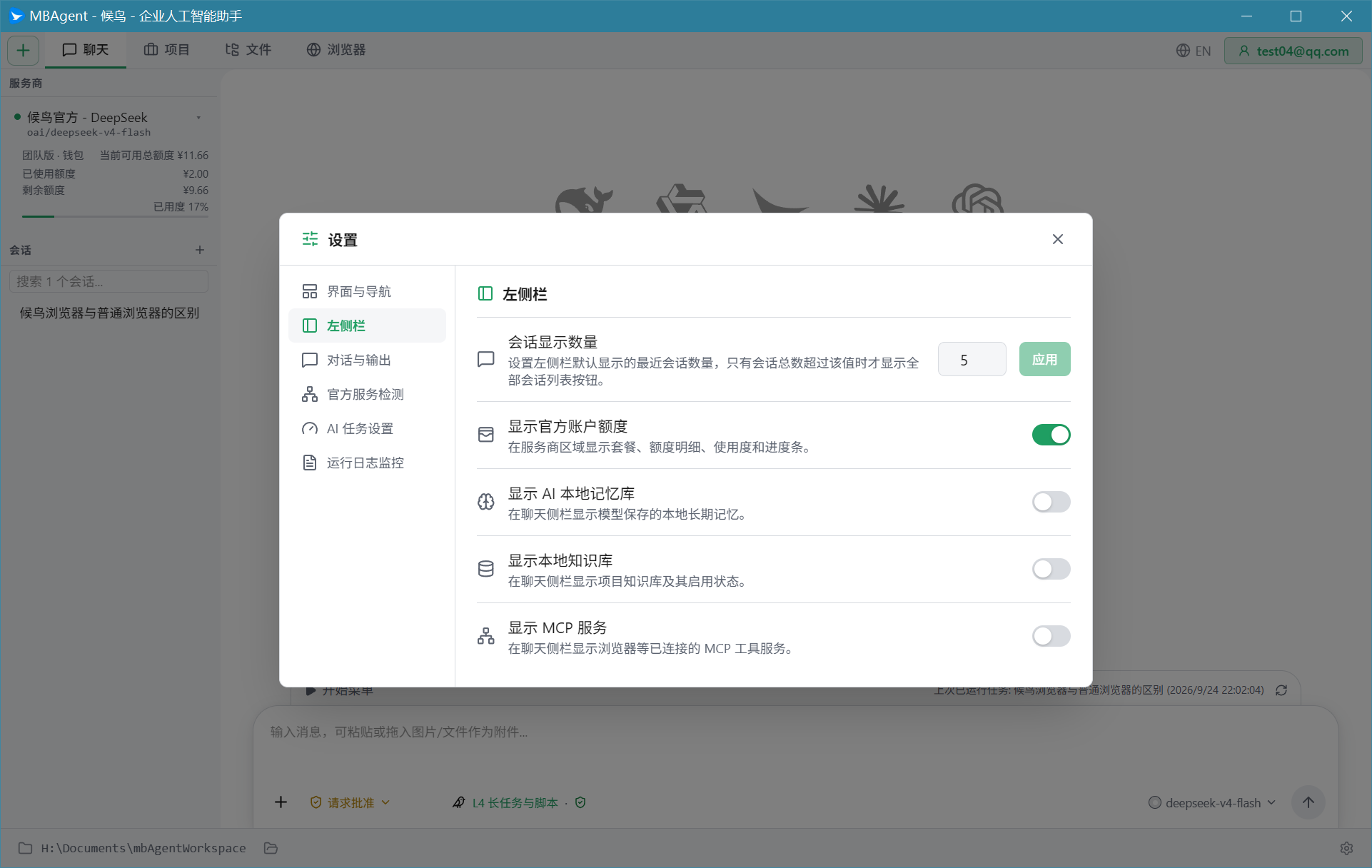
Hide Unneeded Tabs
- Go to "Settings → Interface & Navigation"
- Under "Show Which Tabs", disable tabs you don't use
- Save to take effect immediately
Adjust Order
Drag tabs on the tab bar to adjust display order.
Next: Settings Overview → Personalize your MBAgent.