
Task Panel Explained
The task panel is MBAgent's core interface for handling complex multi-step tasks. When you need AI to do "open environment → collect data → generate Excel", the task panel helps you split each step for management.
NOTE
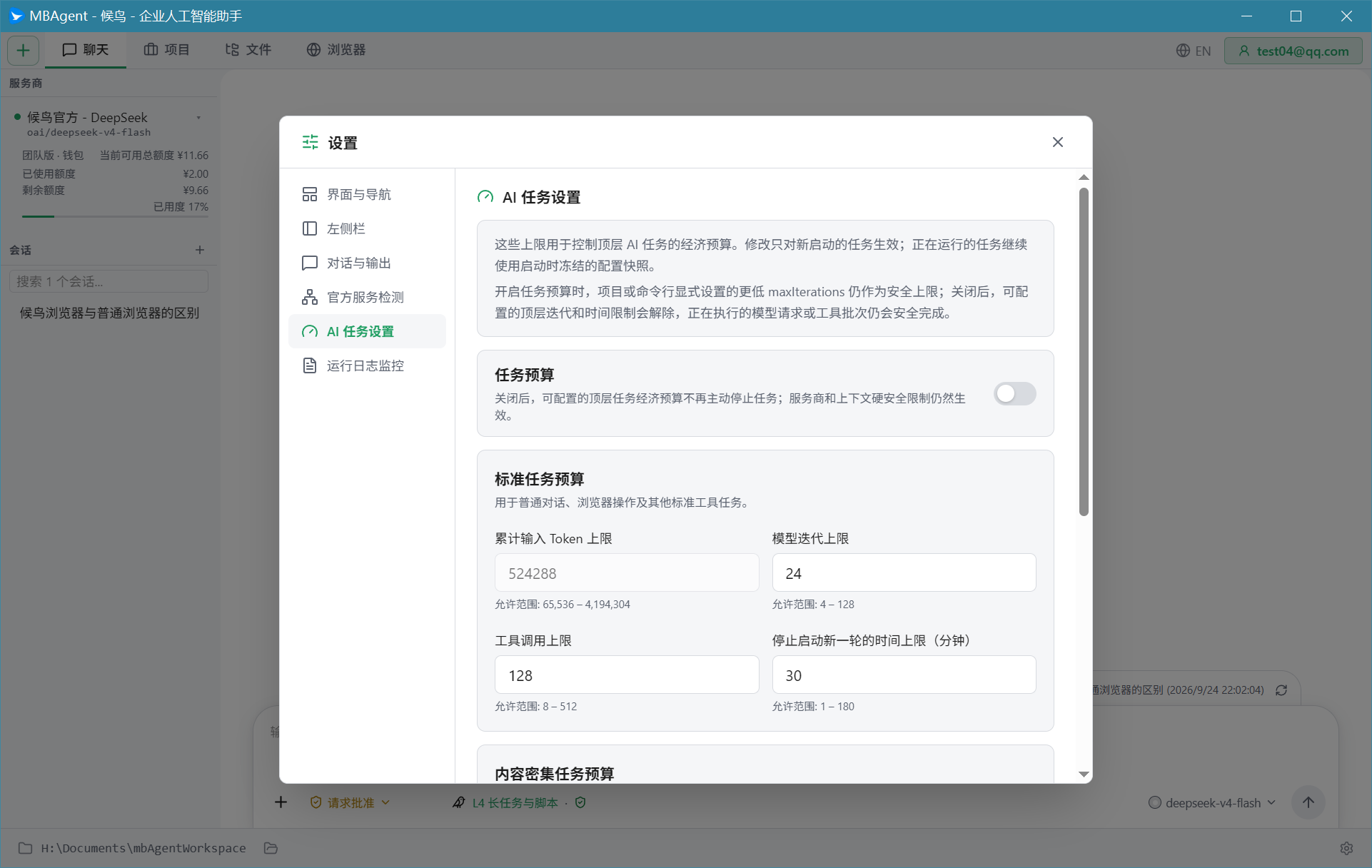
Screenshot description: The overall layout screenshot of MBAgent's task panel (left project grouping + center task card + right detail) can be understood together with the two images below "Task List View" and "Task Detail View". Together they form the complete picture of the task panel.
1. What Is a Task?
Task = a specific work unit for AI to complete.
| Scene | Need Task Panel? |
|---|---|
| "Help me translate this sentence into English" | ❌ Just say it in the chat box |
| "Organize today's orders from 10 stores into Excel" | ✅ Task panel |
| "Patrol all accounts, check cookies and fingerprints" | ✅ Task panel |
| "Daily 9 AM, summarize yesterday's sales data" | ✅ Task panel |
Decision rule: If a task involves "multiple Mbbrowser environments" or "multi-step + automatic execution", it is recommended to use the task panel.
2. Open the Task Panel
Click the "Task" button at the top (or the "Task" entry in the left sidebar), the task panel will slide out from the right:
3. Create a New Task
Step 1: Click the "+" Button
There is a "+" button at the top of the task list; clicking it pops up the new task window.
Step 2: Fill in the basic task info
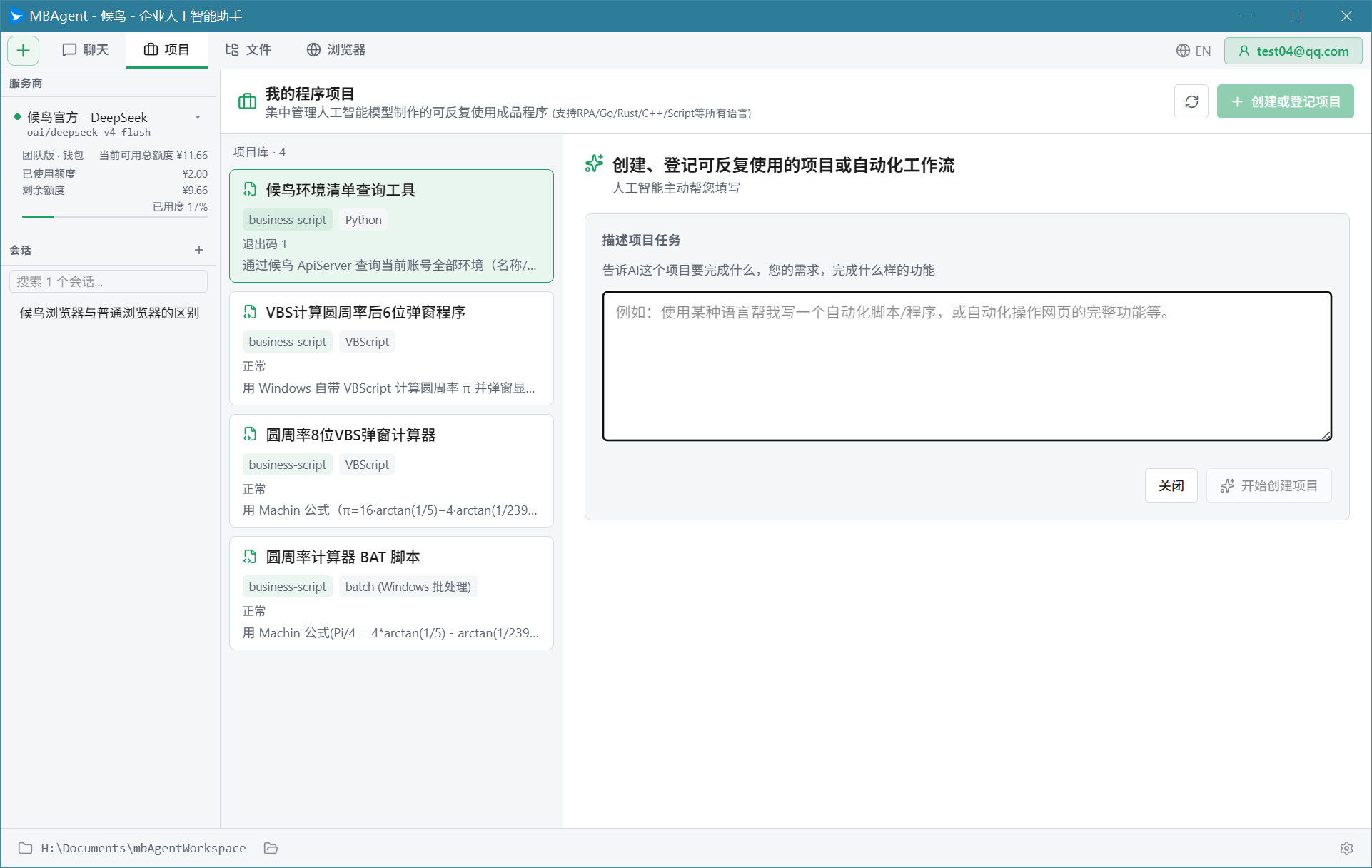
Fill in the popup:
| Field | Description | Example |
|---|---|---|
| Task name | Give the task a name (for later search) | "10-store order summary" |
| Task type | Normal / Scheduled / Loop task | Normal |
| Task description | Tell AI what to do in one paragraph | "Open the following 10 stores, check today's order count, write to reports.xlsx" |
Step 3: Add Steps
The task description is only the overall goal; how to break it down is up to you. Click "Add Step":
NOTE
Screenshot description: The overall effect of the task panel opening the new task window is shown in the "Task List View" image above; the window contains fields like task name, task type, concurrency, and failure handling.
Step editor screenshots (left step tree + center code edit + right variable panel) will be progressively supplemented in v1.x; this section focuses on function description.
Each step can be:
- AI prompt step: "Tell AI in natural language what this step does"
- Tool step: Directly invoke a tool (e.g. "Read file", "Open Mbbrowser environment")
- Control step: "Wait", "Jump", "Conditional"
Step 4: Select Mbbrowser Environments (If Needed)
If the task involves Mbbrowser browser operations, first pick the Mbbrowser environments:
NOTE
Screenshot description: Screenshots of the Mbbrowser environment selection panel's specific interactions (dropdown, tag-based filter, multi-account select) will be progressively supplemented in v1.x. While Mbbrowser environment tasks are running, you can view the "Task Detail View" below; the right side shows the currently loaded Mbbrowser environments and execution progress.
- In the task detail, click the "Mbbrowser Environments" tab
- Select from the dropdown:
- All environments: AI auto-iterates all your accounts
- Specific environments: Manually pick 1 or more Mbbrowser environments
- Filter by tag: e.g. "Amazon stores", "TikTok accounts"
- Click "Confirm"
Step 5: Set Execution Parameters
- Concurrency: Number of environments running simultaneously (recommended 5-10)
- Timeout: Maximum wait time per step
- Failure handling: Skip / Retry / Abort entire task on failure
Step 6: Save Task
Click the "Save" button and the task appears in the task list.
4. Task Details
Click any task in the task list to open the task detail view:
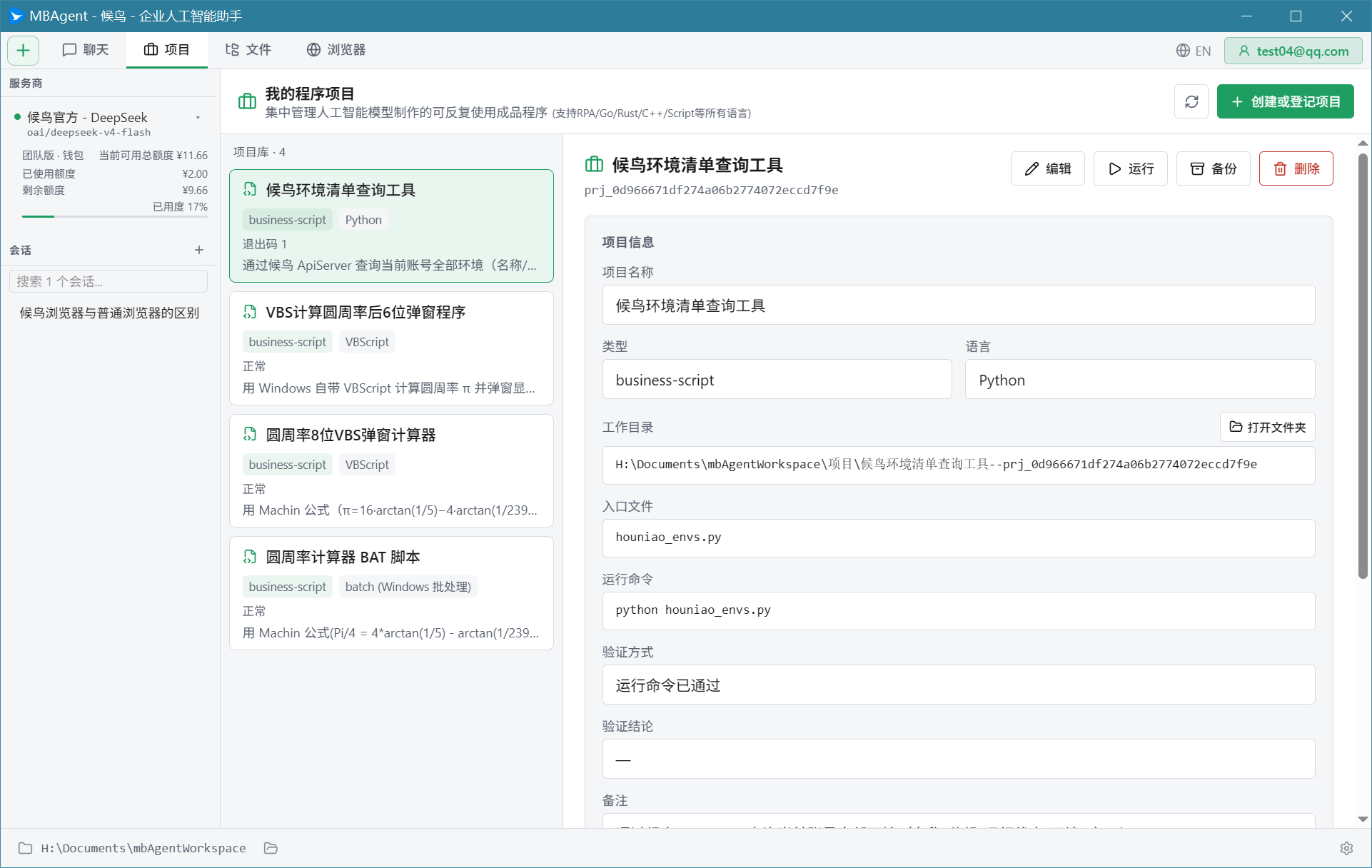
Task Status Description
| Status | Icon | Description |
|---|---|---|
| Not run | ○ | Task saved but not executed |
| Running | ▶ | AI executing |
| Completed | ✓ | All steps successful |
| Partial failure | ⚠ | Some steps failed, errors logged |
| Failed | ✗ | Task aborted |
| Cancelled | ⏹ | You stopped manually |
5. Run the Task
Immediate Run
Click the "▶ Run" button at the top right of the task detail page; the task starts immediately.
Monitor Execution Progress
After the task starts, you will see:
- Real-time progress bar (completed steps / total steps)
- Currently executing step (highlighted)
- Per-step execution log
- Failure error info
Pause / Resume / Cancel
- Pause: Click the "⏸ Pause" button; AI will stop after completing the current step
- Resume: Click "▶ Continue" to keep running
- Cancel: Click "⏹ Cancel" to terminate immediately (irrecoverable)
TIP
Pause tips:
- Pause mid-run to check intermediate results
- If a step definition is wrong, pause / modify / resume
- If one environment is stuck, skip it and continue with the rest
6. Edit the Task
Tasks can be edited anytime:
Edit Basic Task Info
Click the "✏️ Edit" button at the top right of the task detail to modify the name, description, and parameters.
Edit Steps
Click any step in the step list; the right side shows the step editor:
- Modify the step description (AI prompt)
- Insert new steps (before/after the current step)
- Delete steps
- Adjust step order (drag or move up/down)
- Set data passing between steps (previous step output → next step input)
Edit Mbbrowser Environments
Click the "Mbbrowser Environments" tab to add/remove Mbbrowser environments or change tag filters.
7. View Past Results
After task execution completes, an execution report is automatically saved:
- Click the "Past Results" tab on the task detail page
- Pick one execution
- You can see:
- Each step's start time, end time, duration
- Each step's input and output
- Failed step's error stack
- Final output file (e.g. Excel, report) download link
TIP
Past results retention: Default 30 days. Adjust in "Settings → Data Retention".
8. Task Type Details
Normal Task
Manually triggered, one-time execution. The most common task type.
Scheduled Task
Auto-triggered by cron expression. Setup method:
- Select "Scheduled Task" when creating a new task
- Set cron expression (e.g.
0 9 * * *means every day at 9 AM) - MBAgent auto-executes per plan
Loop Task
Repeat execution at fixed intervals:
- Select "Loop Task"
- Set interval (e.g. every 30 minutes, every 2 hours)
- Set end condition (stop after N runs / manual stop)
Long-term Goal
Iteratively continue around a long-term goal until AI judges the goal complete or you manually terminate:
- Select "Long-term Goal"
- Describe the final goal (e.g. "Continuously optimize the conversion rate of these 20 stores")
- AI autonomously plans weekly and daily specific actions
Research Task
Deep-research a topic:
- Select "Research Task"
- Input research topic
- AI breaks into multiple research sub-tasks, collects materials in parallel
- Finally outputs a structured research report
9. Task Best Practices
Task Decomposition Principle
✅ Good task:
- Clear steps (one explicit action per step)
- Clear data flow (previous step output → next step input)
- Failure handling plan ready
❌ Bad task:
- Everything stuffed into one step
- Unclear dependency between steps
- No failure handling
First Task Creation Recommendations
- Start simple: first create a 3-5 step small task
- Manual run once: confirm the flow has no problems
- Then add concurrency: change to parallel execution of multiple environments
- Finally schedule: set as a scheduled task after confirming stability
Debug a Task
When a task errors out:
- Check "Execution Log" to find the failed step
- Click that step to see specific error info
- Rerun this step alone (if supported)
- Modify step definition, rerun the entire task
Next: Full Feature Menu Overview → Understand all of MBAgent's functional entries.