
First Time Using MBAgent
After MBAgent launches, the first thing in front of you is the Chat tab. This guide walks you through the complete flow of "say one sentence in Chinese → see AI reply" and helps you understand MBAgent's core interaction model.
NOTE
Prerequisite: You have completed Download, Installation, and First Launch; Mbbrowser is logged in; MBAgent has an AI model selected.
1. Get to Know the Chat Tab
NOTE
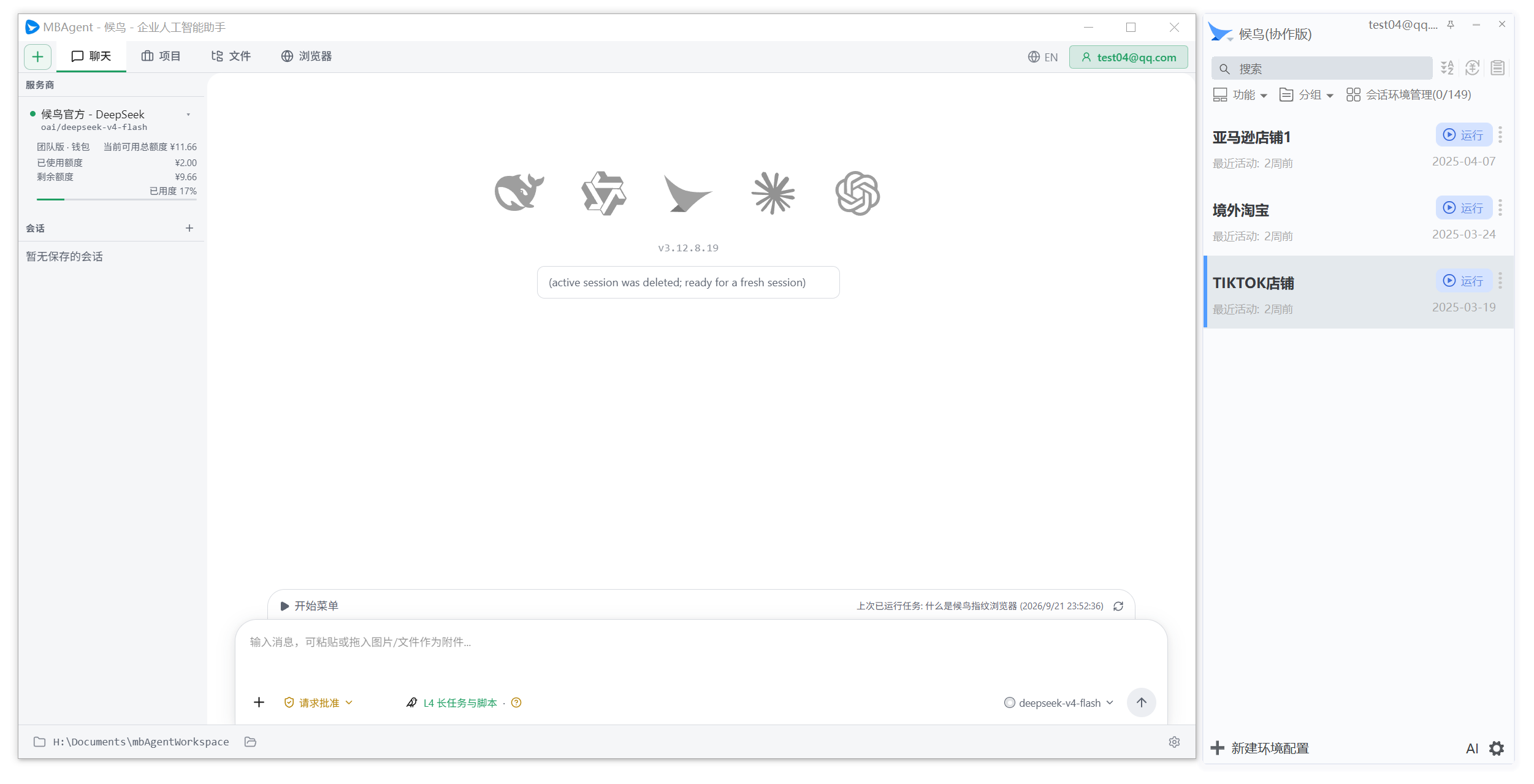
Screenshot description: The above image shows the default UI layout of MBAgent after launch (new task panel). This picture mainly showcases the overall window's "left sidebar + main area + input box" partition so you can see MBAgent's overall shape at a glance. When you switch to the "Chat" tab, the center main area will switch to the conversation area, while the input box remains unchanged.
The Chat tab is mainly composed of three parts:
| Element | Purpose |
|---|---|
| Session title | Shows the current conversation topic; new sessions show "New Session" |
| Model selector | Switch the current AI model |
| Conversation area | Shows the complete conversation history between you and AI |
+ button | Add attachments (images, files) |
📎 button | Paste from clipboard or upload files |
| Input box | Type what you want to say (supports long Chinese text) |
| Send button | Send content to AI (also press Enter to send, Shift+Enter for new line) |
2. First Conversation: From One Sentence to AI Reply
Step 1: Type your request in the input box
Click the bottom input box and type what you want to do. Just talk naturally, no need to write formally:
帮我整理一段话,介绍 MBAgent 是什么,适合给从没听说过的同事看。
Step 2: Click Send
- Press
Enterdirectly to send - Or click the "Send" button on the right with your mouse
- After sending, a "Thinking" prompt will appear above the input box
Step 3: Watch AI Reply
After a few seconds, MBAgent will show AI's reply in the conversation area:
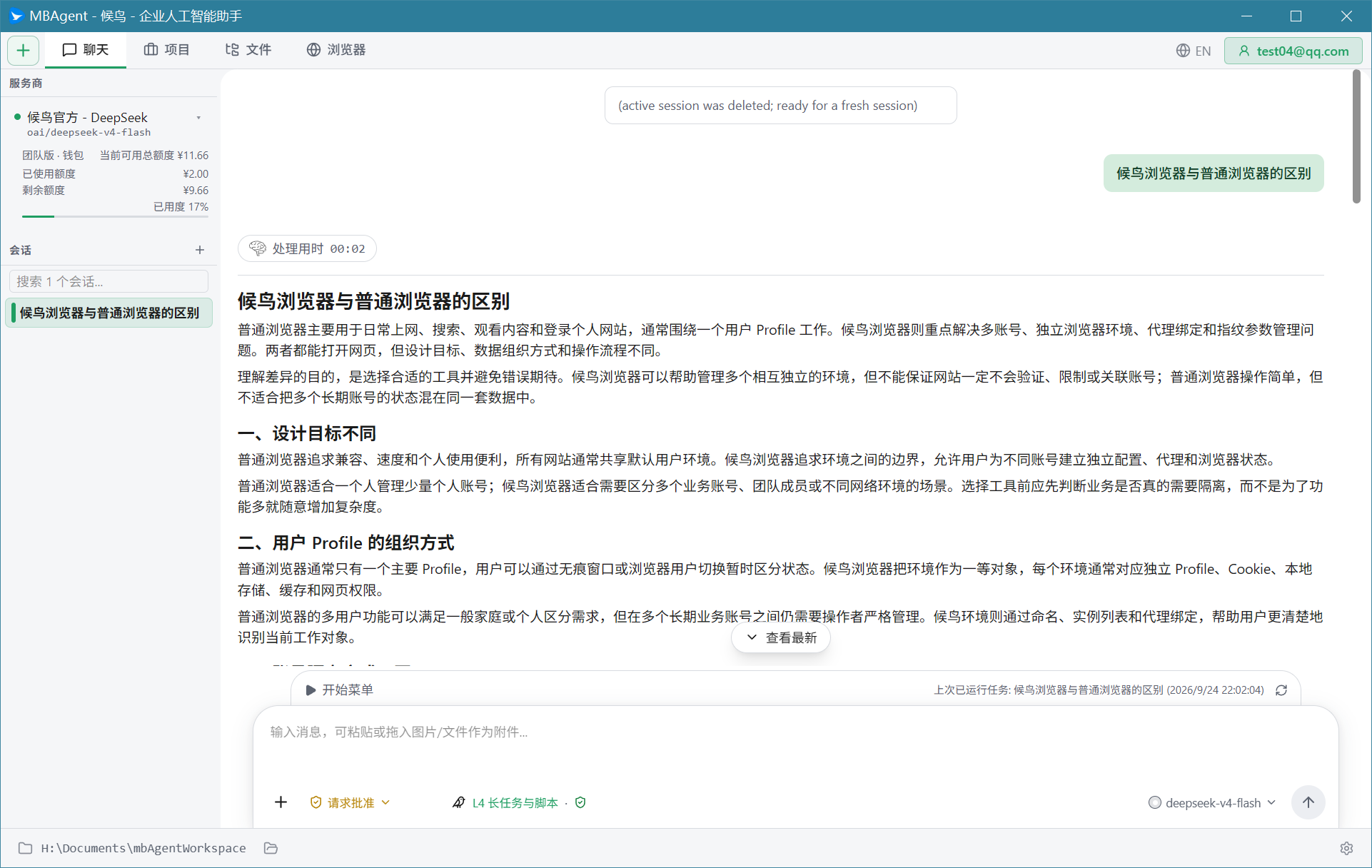
- Replies are streamed out (one character at a time), letting you see it "thinking" in real-time
- When the reply ends, the status bar below the input box shows "Token and cost statistics" (if enabled)
- You can press
Escat any time to pause the current reply
Step 4: Continue Asking
If the AI reply is not as expected, you can continue typing in the input box:
第二段再短一些,重点突出"自然语言"这四个字。
AI will keep modifying based on the previous round's answer — this is multi-turn conversation.
TIP
Multi-turn conversation tips:
- Use pronouns like "again", "continue", "above", "earlier" to refer to elements from above — AI understands
- If unsatisfied, just say "rewrite", "write from another angle", "shorter"
- If the topic changes, starting a new session is cleaner than continuing in the same one
3. Upload Attachments: Let AI See Images and Files
MBAgent supports two kinds of attachments: images and regular files.
Upload Images
Drag the image directly into the input box, or click the 📎 button → "Upload Image", the image will appear as a thumbnail above the input box. With multimodal models (such as gpt-5, claude-sonnet-4), AI can "understand" image content.
Use scenarios:
- Let AI identify error screenshots: "Look at this image, what to do about the error?"
- Let AI extract text from an image: "Copy the table in this image into Excel"
- Let AI critique a design draft: "Where can this login page be optimized?"
Upload Files
Regular files (PDF, Word, Excel, txt, code, etc.) are sent via "+ button → Upload File". After upload, files appear in the file list above the input box.
Use scenarios:
- Let AI read a contract: "Summarize the key terms of this contract"
- Let AI fix code: "Find the bug in this Python file"
- Let AI translate a document: "Translate this English report into Chinese"
IMPORTANT
Single file size limit: It is recommended that a single file does not exceed 50 MB; for very large files (>100 MB), tell AI the path via "read path" and let AI use its tools to read it.
4. Copy, Edit, Resend Messages
Copy Message
Hover over any message and operation buttons appear. Click the "Copy" button to copy the message content (including attachment info) to the clipboard.
Edit Message
Click the "Edit" button below a message you sent to re-edit that message. After saving, AI will reply again, while keeping the prior conversation.
TIP
Edit message ≠ Recall: After editing, AI regenerates the answer based on the "modified message"; the original answer is not deleted, but shows as "replaced" status.
Delete Message
Click the "Delete" button to delete one of your messages. Note: after deletion, AI's context also loses that message — AI may "forget" it.
5. View Past Sessions
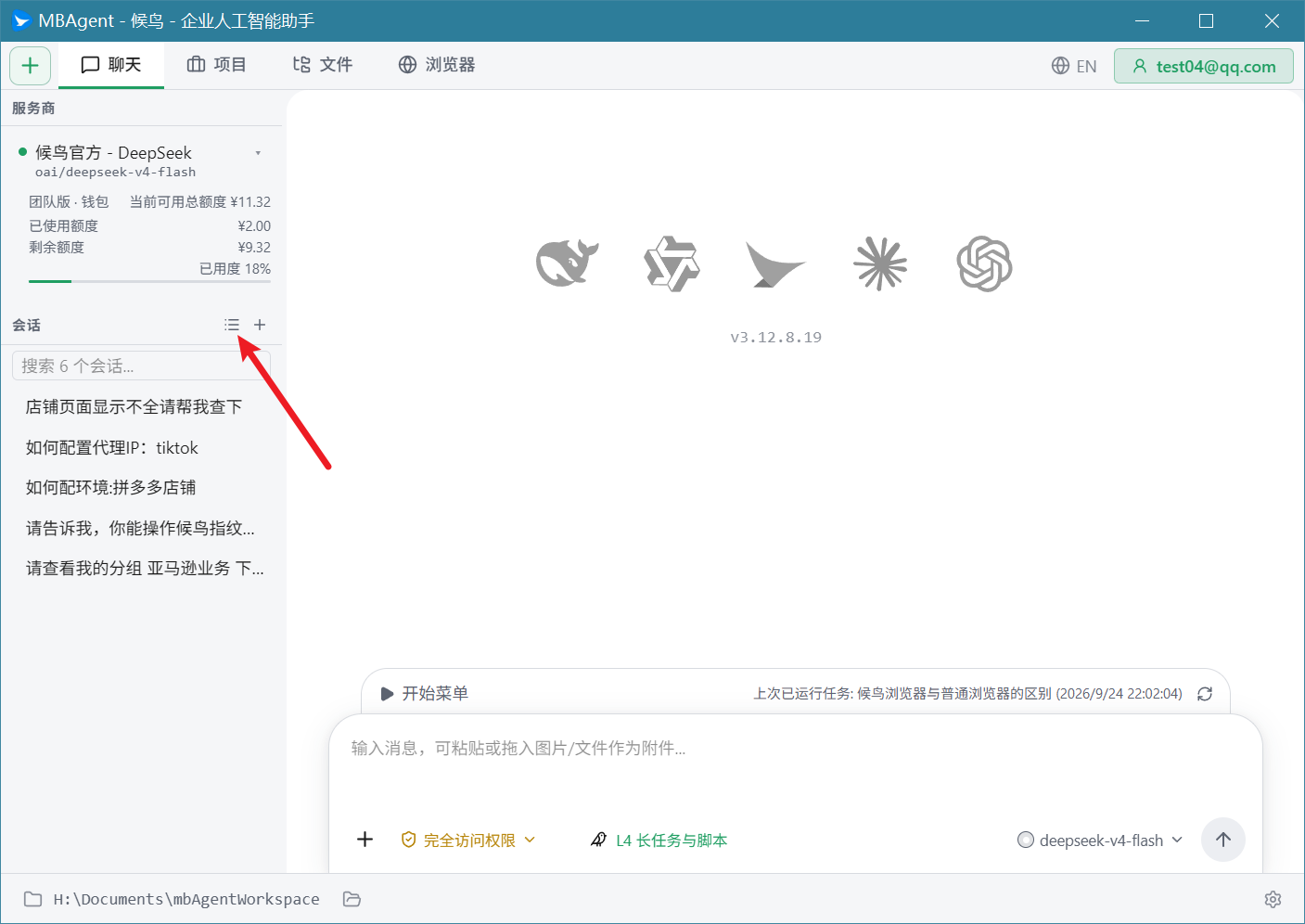
Session List
The left side of the Chat tab is the session list. Each session (a continuous conversation) shows:
- Session title (auto-extracted from your first sentence)
- Model used
- Creation time
- Message count
Switch Sessions
Click any session in the session list and the chat area will switch to that conversation's history. You can freely dual-open: switching between session A and session B; AI will not mix up contexts.
NOTE
Left sidebar entry quick view: From top to bottom, the left sidebar in the image contains eight entries: Provider selector, Session list, AI local memory bank, Local knowledge base (KMS), MCP services, Mbbrowser RAG knowledge base, Mbbrowser client ControlV2, and Mbbrowser official account quota; each can be collapsed/expanded independently. See Full Feature Menu Overview.
New Session
Click the "+" button at the top of the session list to start a brand-new conversation. The default title is "New Session"; AI will automatically rename it to something meaningful based on your first sentence.
TIP
When to start a new session:
- The topic has fully changed (from organizing documents → writing code)
- The context is too long and AI starts "forgetting" earlier content
- You want to compare effects using different models
- You want to clear history and start over
Delete Session
Right-click a session → "Delete Session". MBAgent will pop up a confirmation box before deletion. Note: deletion is unrecoverable, please ensure there is no important content inside.
6. Adjust the Interface
Switch Tab Bar Mode
Click the "Icon Mode" button at the top of the Chat tab (next to the model selector) to switch the tab bar display style:
- Icon + text (default): each tab shows an icon and Chinese name
- Icon only: narrower tab bar, saves horizontal space
- Hidden: maximize the chat area, suitable for pure writing scenes
Switch Theme
MBAgent supports Light and Dark themes, automatically following your OS settings. If you want to switch manually:
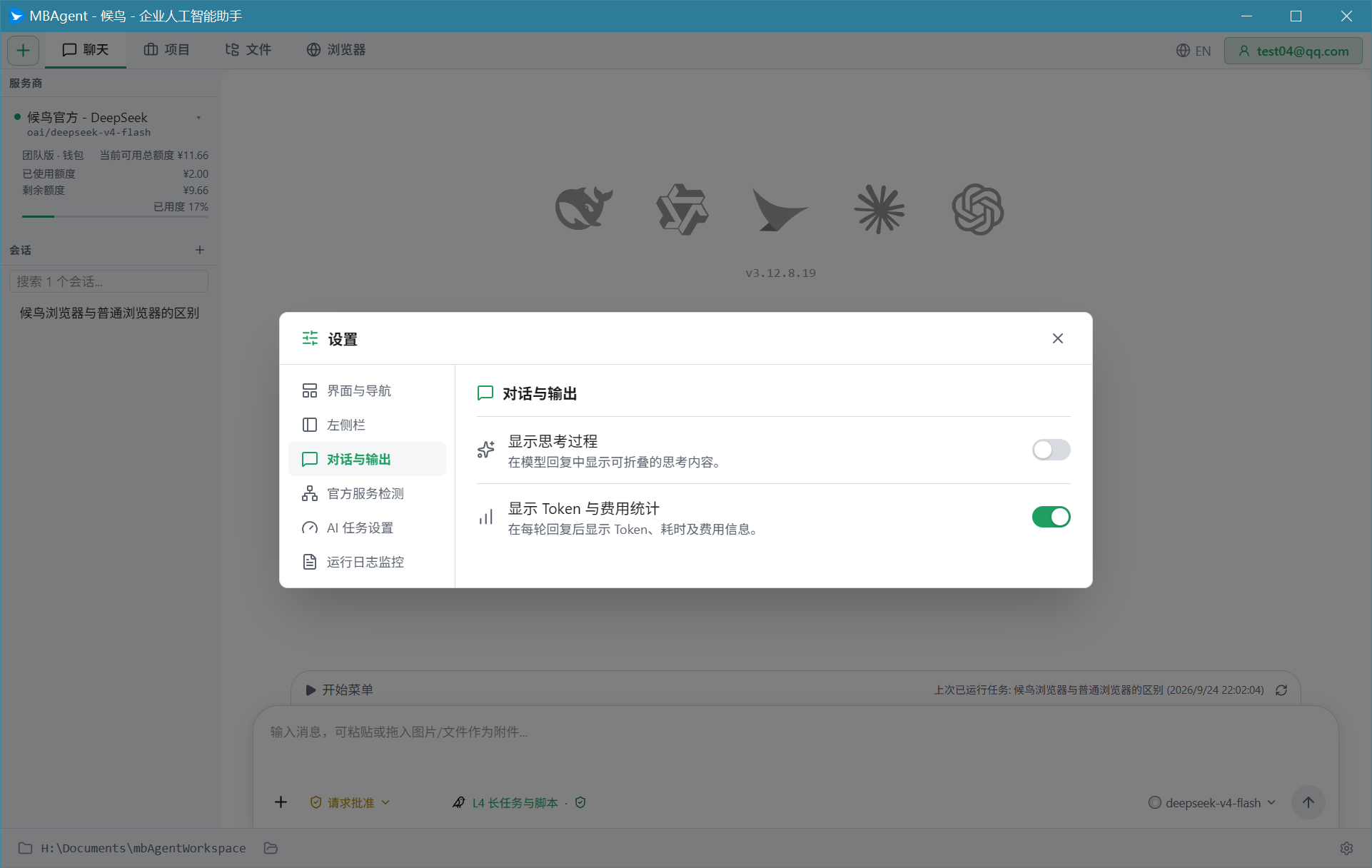
- Click the Settings ⚙️ button at the top right
- Select "Interface & Navigation"
- In the "Theme" dropdown, choose "Light" / "Dark" / "Follow System"
7. First-Use Recommendations
What to Ask First?
It is recommended to start with small tasks to gradually feel MBAgent's capability. Recommended topics for the first conversation:
| Scene | Example question |
|---|---|
| Self-intro | "Please introduce yourself in one paragraph" |
| File organization | "List the file names under D:\Downloads" |
| Translation | "Translate this sentence into English: 今天天气真好" |
| Coding intro | "Write a hello world in Python" |
| Brainstorming | "Help me think of 5 titles for Mbbrowser short videos" |
Things to Avoid on First Use
- ❌ Don't let AI directly operate your important files (back up first)
- ❌ Don't let AI delete Mbbrowser accounts (test in sandbox first)
- ❌ Don't let AI do dozens of steps in one task at once (split into multiple conversations)
- ❌ Don't force-close the software during AI reply (may corrupt the context)
Next: What MBAgent Can Do → Systematically understand MBAgent's capability boundaries.