
Settings Overview
Click the "Settings" ⚙️ button at the top right of the Chat tab to open the MBAgent settings panel. This article systematically introduces each setting's purpose.
NOTE
Screenshot description: This article has images for each setting (settings panel screenshots are at the head of each section).
1. Default Model
Set the model used by default when creating new sessions.
Select Default Model
- Go to "Default Model" tab
- Pick from the dropdown:
- Provider (Mbbrowser official / OpenAI / ...)
- Concrete model (gpt-5-mini / claude-sonnet-4 / ...)
- Save
TIP
Recommendation: Use cheap models (deepseek-v4-flash / deepseek-v4-pro) as default; temporarily switch to stronger models for complex tasks.
2. Provider Configuration
Manage all AI providers that MBAgent can use.
Enabled Provider List
Displays all currently available Providers:
- ✅ API Key configured
- ⚠️ Added but Key not configured
- ❌ Disabled
Add Custom Provider
See Model Selection & Provider Configuration Section 5.
Credential Management (API Key)
- Mbbrowser official API Key: Auto-read from Mbbrowser client
- Custom Provider Key: Manually input, stored in Windows Credential Manager
- Third-party relay Key: Same as above
- Click "Show" to view saved Key (mask only)
NOTE
Quota viewing entry: Your current AI model quota can be viewed at the Mbbrowser website console (https://www.mbbrowser.com/console → My Account → AI Quota), or in the account dropdown menu at the top right of the Chat tab, click "My AI Quota" to jump to view.
IMPORTANT
API Key Security:
- MBAgent never uploads your Key to any server
- Key only stored in local Windows Credential Manager
- Credentials are cleared together when MBAgent is uninstalled
- Recommended to regularly rotate Keys at third-party consoles
3. Interface and Navigation
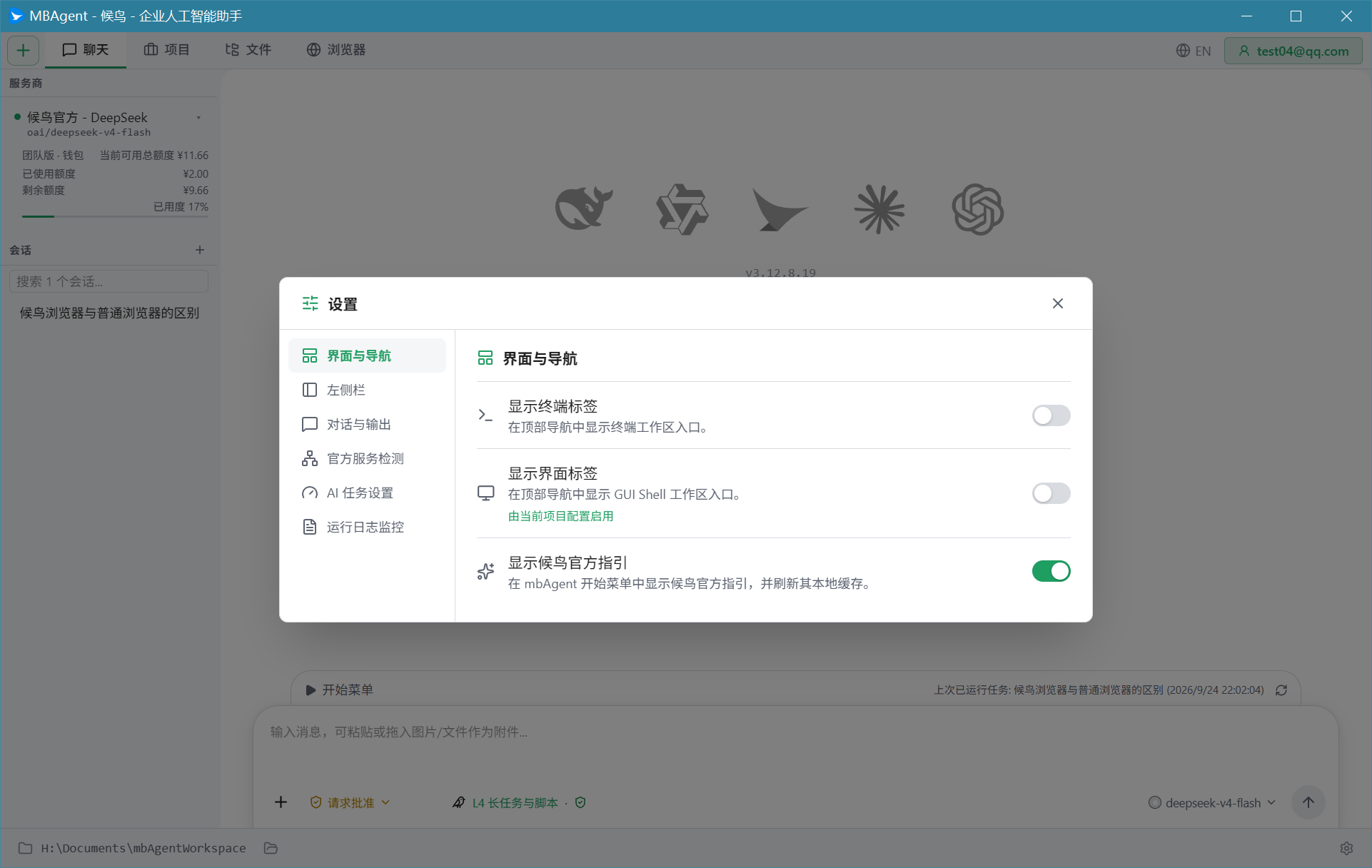
Tab Bar
- Show Terminal tab: Whether to show "Terminal" tab at the top
- Show UI tab: Whether to show "UI" tab at the top
- Show Shell tab: Whether to show "Shell" tab at the top
- Tab bar width: Adjustable
Left Sidebar
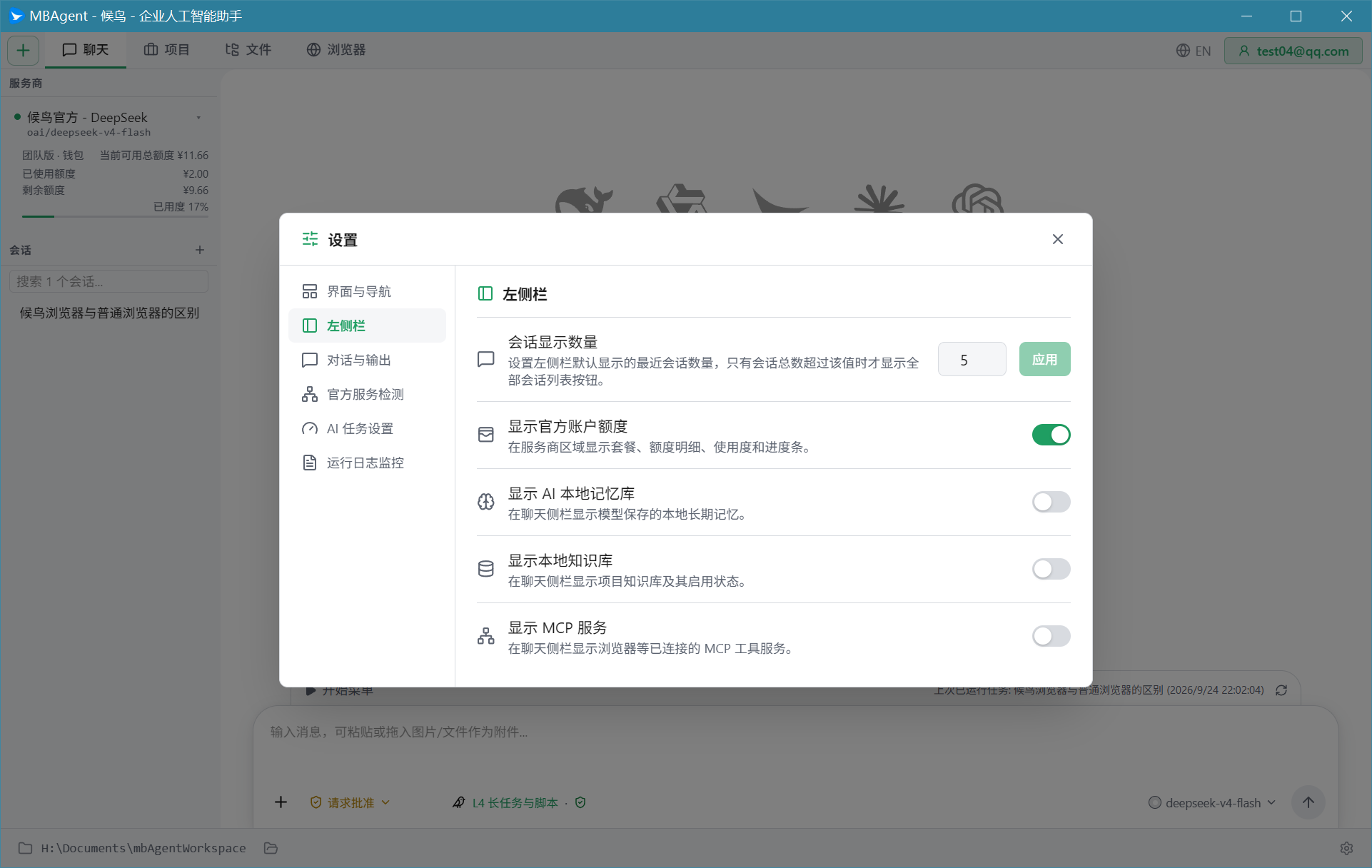
- Session display count: Default number of latest sessions to show; "All sessions list" button appears beyond this value
- Show AI local memory bank: Whether to show the memory bank entry in the left sidebar
- Show local knowledge base: Whether to show KMS entry
- Show MCP services: Whether to show MCP status
- Show official account quota: Whether to show Mbbrowser official account quota
Theme
- Light / Dark / Follow System
Language
- 简体中文 (default)
- English
- Deutsch (verification language dedicated for the Mbbrowser authorized dropdown)
4. Conversation and Output
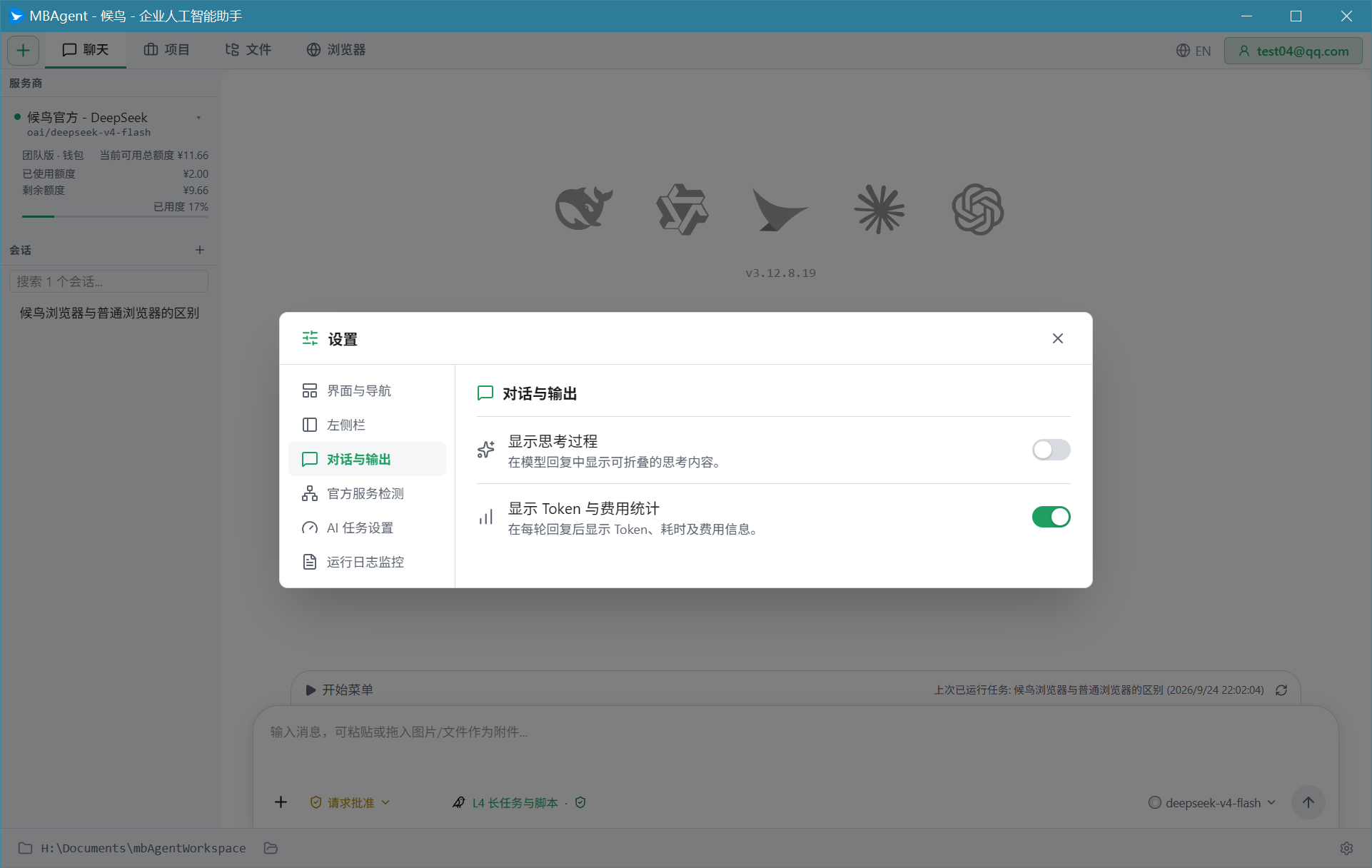
Display Settings
- Show thinking process: Display foldable thinking content in AI reply
- Show Token and cost statistics: Show Token, duration, cost after each reply round
Auto-save
- Auto-save sessions: Save to disk after each send
- Save attachments: Auto-save attachments locally
Default Attachment Handling
- Image attachments: Auto base64 to model / save locally
- File attachments: Auto parse to text context / let model call Read tool
5. AI Task Settings
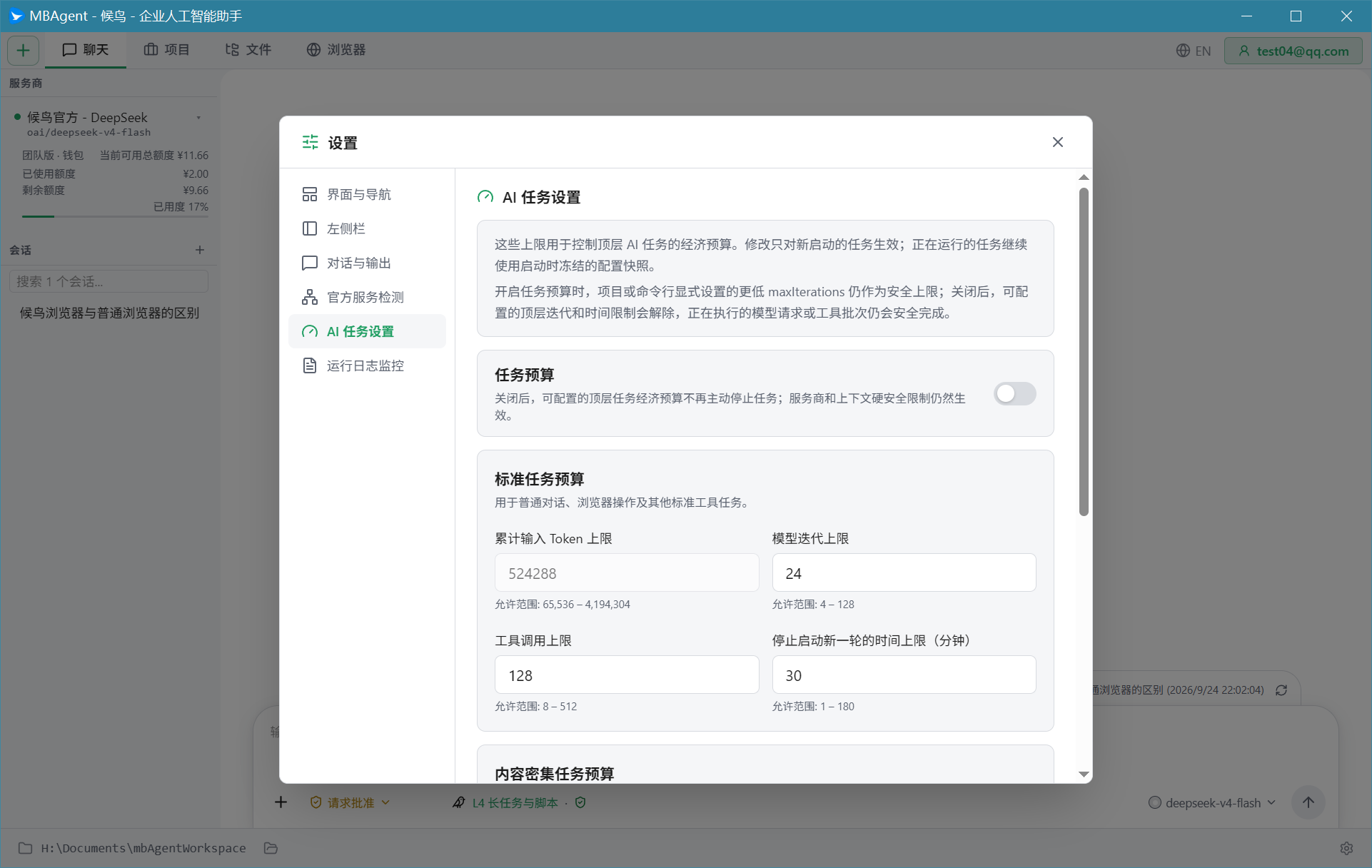
Task budget controls the resource ceiling for each top-level AI task.
Two Task Budgets
| Task Type | Use Case |
|---|---|
| Standard task budget | Normal chat, browser ops, tool tasks |
| Content-intensive task budget | Documents, projects, official KB evidence tasks (higher quota) |
Standard Budget Default Items
| Limit Item | Default | Purpose |
|---|---|---|
| Cumulative input Token limit | 1,000,000 | Controls total input |
| Model iteration limit | 50 | Controls AI thinking rounds |
| Tool call limit | 200 | Controls tool call count |
| Stop-start new round time limit (min) | 30 | Total duration |
| Consecutive no-progress limit | 5 | Prevents idle loops |
NOTE
Changes only take effect on newly started tasks. Running tasks use the snapshot config at launch time.
6. Official Service Detection
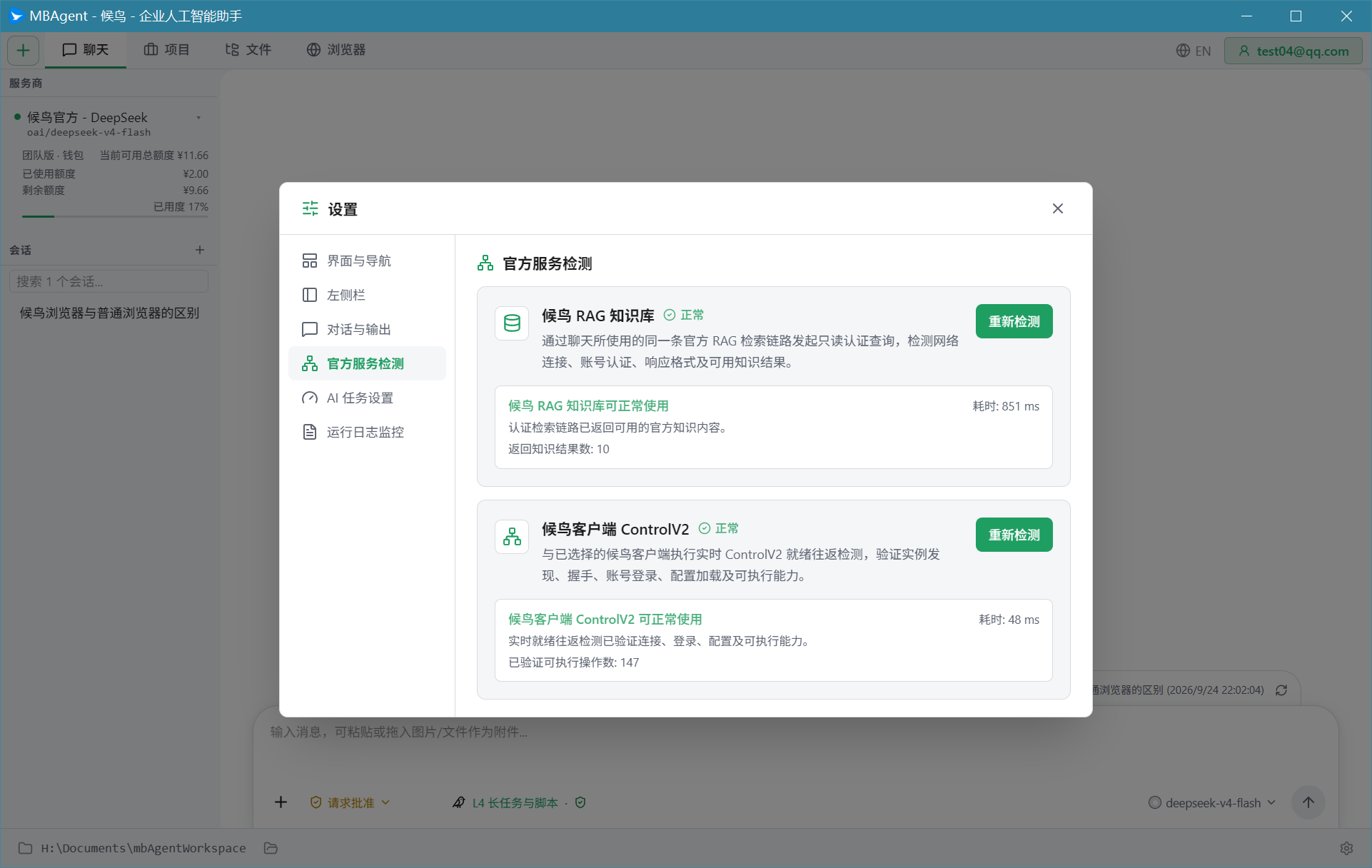
Verifies whether the two core services provided by Mbbrowser official are available:
1. Mbbrowser RAG Knowledge Base
- Issue read-only authenticated queries via Mbbrowser official RAG retrieval link
- Detect: network connection, account auth, response format, available knowledge result
- Status: Normal / Abnormal / Disabled / Checking
2. Mbbrowser Client ControlV2
- Perform real-time ControlV2 readiness round-trip detection with the selected Mbbrowser client
- Verify: instance discovery, handshake, account login, config loading, executable capability
- Status: Normal / Abnormal / Disabled / Checking
Detection Trigger Method
- Manual: Click "Start Detection" / "Re-detect" on the settings page
- Auto: Auto-detect once when MBAgent starts
TIP
Prioritize detection when issues arise:
- "AI can't operate Mbbrowser" → check if ControlV2 is normal
- "AI says it can't find official material" → check if RAG is normal
- When status is Abnormal, contact Mbbrowser customer support per the error message
7. Run Log Monitoring
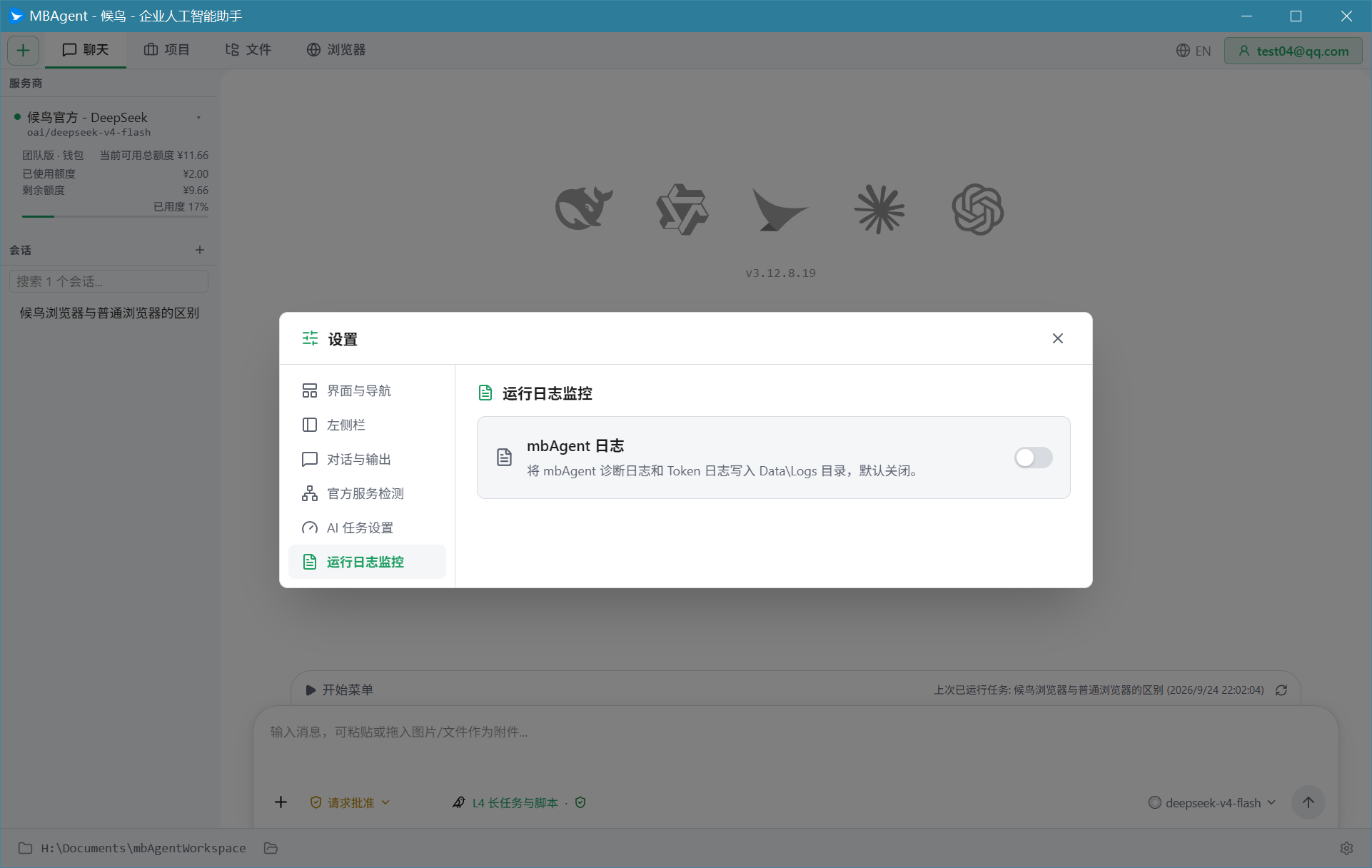
MBAgent Log Switch
- Enable mbAgent log: Write MBAgent diagnostic logs and Token logs to the
Data\Logsdirectory - Default off: to avoid disk consumption
Log Viewing
Log file location:
%LOCALAPPDATA%\mbagent\logs\Contains:
- Diagnostic logs (start, error, performance)
- Token logs (input/output Token count per call)
8. Permission Management
MBAgent operations involve multiple permission layers; see Permission Management & Safe Usage.
Permission Modes
- Ask: Each high-risk operation pops up for confirmation
- Auto: Common operations auto-execute, very few popups
- Plan: Enter plan mode, each step needs approval
Tool Call Approval
- File write: Confirm before writing
- Command execution: Confirm before executing shell commands
- MCP tools: Each MCP tool can be set individually
9. Keyboard Shortcut Settings
Some shortcuts can be adjusted in settings:
- Send message shortcut (Enter / Ctrl+Enter)
- Cancel reply shortcut (Esc)
- New session shortcut
10. About MBAgent
View Version Info
- MBAgent version: e.g.
1.112.10.18 - Cargo package version: e.g.
1.112.10 - Build date
- Update channel (stable / beta / dev)
Check Updates
Click the "Check Updates" button; MBAgent will auto-detect whether a new version exists. If a new version exists, it will prompt you to download from the Mbbrowser console.
Reset Settings
If settings get messed up, you can:
- Back up important configuration
- Click the "Restore Recommended Defaults" button
- Restart MBAgent
11. Settings Recommendations
Newbie Recommended Configuration
- Default model:
deepseek-v4-flashordeepseek-v4-pro - Show thinking process: ✅ Enable (learn how AI thinks)
- Show Token and cost statistics: ✅ Enable (understand each expense)
- Show AI local memory bank: ✅ Enable
- Show local knowledge base: ✅ Enable
- Show MCP services: ✅ Enable
- Show official account quota: ✅ Enable
- Language: 简体中文
- Theme: Follow System
- Task budget: Use defaults
Advanced User Configuration
- Default model:
gpt-5.6-solorgpt-6.0-sol - Show thinking process: Off (save Tokens)
- Session display count: Adjust to 30
- API Key: Use self-built gateway
Next: AI Memory Bank Usage → Let AI remember your preferences.