
MBAgent Download, Installation, and First Launch
MBAgent is the official companion component of Mbbrowser, integrated into the Mbbrowser installer — no separate download required. This guide walks you through every step from downloading the installer to opening MBAgent for the first time.
NOTE
Applicable version: Mbbrowser v3.0 and above (MBAgent is built into the installer). If you have already installed Mbbrowser, you can skip directly to Section 3: First Launch of MBAgent.
1. Download the Mbbrowser Installer
Step 1: Visit the download page
- Open any browser on your computer (Chrome / Edge / Firefox are all fine)
- Visit the official Mbbrowser download page: https://www.mbbrowser.com/download
- Select the version matching your system:
| System | Recommended Version | Installer Size |
|---|---|---|
| Windows 11 / Windows 10 (64-bit) | Latest official | ~588 MB |
| Windows 7 / Windows 8.1 | No AI support | 412 MB |
TIP
How to check system version: Right-click "This PC" on the desktop → Properties → the "System type" line tells you whether it's 64-bit or 32-bit.
Step 2: Save the installer
After clicking the download button, the browser will save a .exe installer to your "Downloads" folder, named something like:
AI_20260921_MBbrowserSetup_9.18.58.198_Core_140.exeDownload time depends on your network speed, typically 30 seconds to 2 minutes.
2. Install Mbbrowser (Including MBAgent)
Step 1: Run the installer
- Double-click the downloaded
.exefile - If Windows prompts "User Account Control" asking for permission, click "Yes"
- The setup wizard auto-launches and shows the welcome page
Step 2: Accept the agreement
On the license agreement page, click "I Agree" to continue.
Step 3: Choose the install location
It is recommended to use the default install path:
C:\Program Files\MbbrowserNOTE
Modifying the install path is not recommended. MBAgent is tightly integrated with Mbbrowser; a custom path may cause anomalies in some functions (such as command-line invocation and API interfaces).
Step 4: Select components
The setup wizard will list the available components; make sure the following two are both checked:
- ✅ Mbbrowser main program (required)
- ✅ MBAgent Mbbrowser Enterprise AI Assistant (required, checked by default in new versions)
- ⬜ Mbbrowser desktop shortcut (recommended to check)
- ⬜ WebView2 runtime (no need if already installed on system)
Step 5: Wait for installation to complete
After clicking "Install", wait for the progress bar to finish. The entire process takes about 1-3 minutes.
Step 6: Finish installation
After installation completes, two icons will appear on your desktop:
🟦 Mbbrowser          ← Main program entry (mbbrowser.exe)
🤖 MBAgent             ← AI assistant entry
3. First Launch of MBAgent
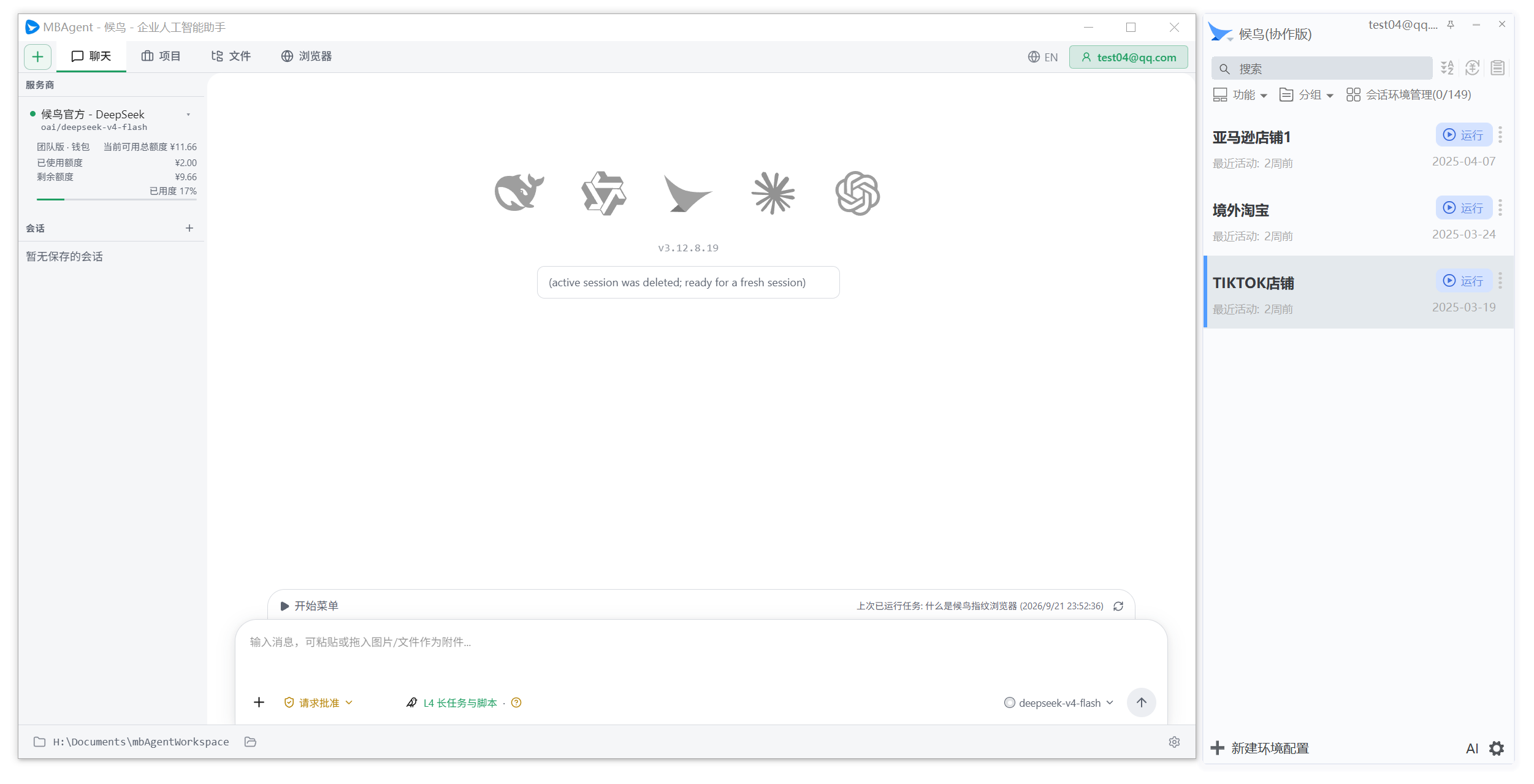
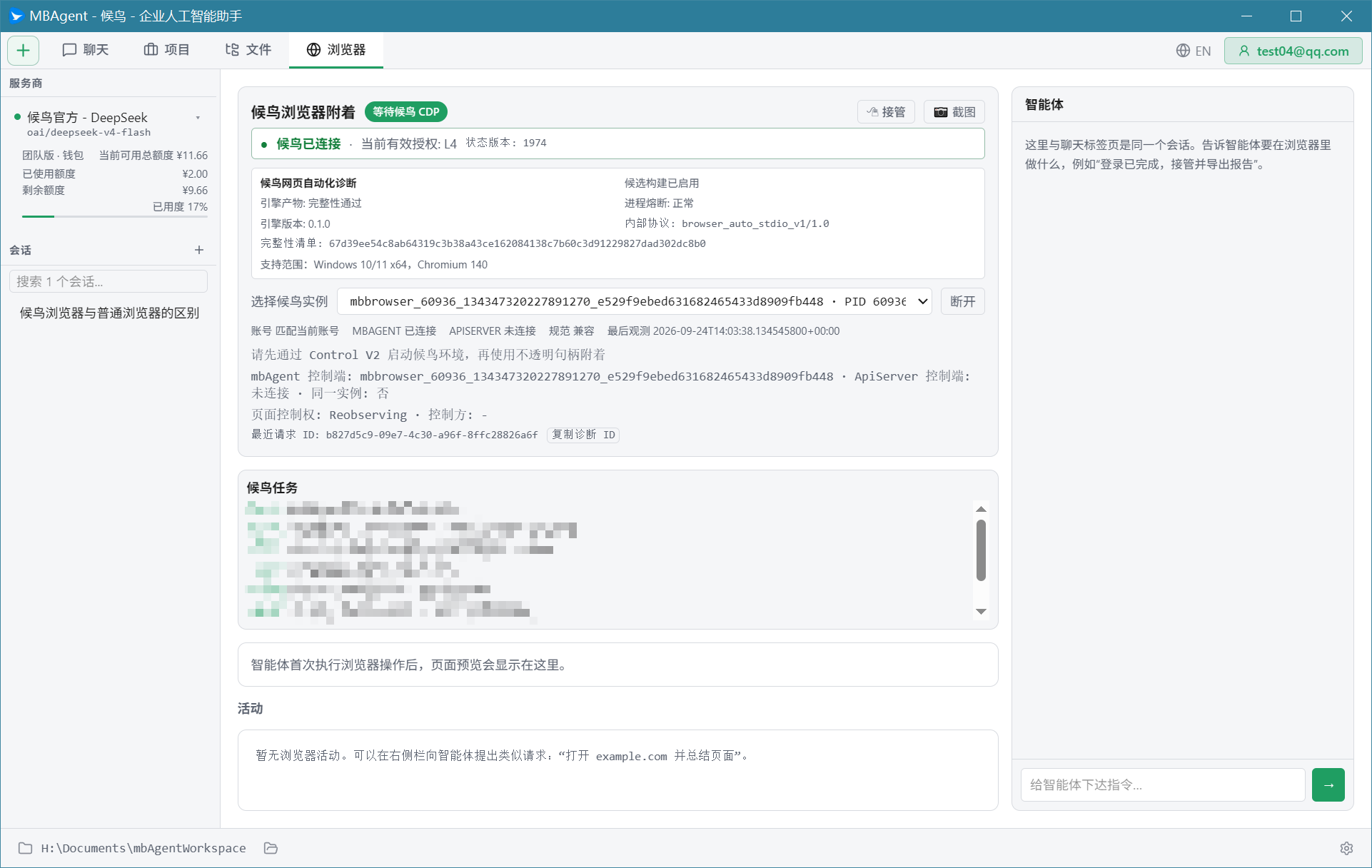
NOTE
Screenshot description: The above image is a full-screen layout screenshot of MBAgent after launch (top tab bar + left sessions and environment list + center new task panel + right loaded browser list). You will see this same layout on your first launch.
Step 1: First start Mbbrowser and log into your account
IMPORTANT
Important: MBAgent must connect to a Mbbrowser account before it can be used. Please follow this order on first use:
- Double-click the "Mbbrowser" desktop icon to launch the main program
- Enter your Mbbrowser account and password to log in
- Confirm that your created environments are visible in the left environment list
- Do not close Mbbrowser, return to the desktop
Step 2: Launch MBAgent
- Double-click the "MBAgent" desktop icon (or from Start menu → Mbbrowser → MBAgent)
- MBAgent will pop up a "Select working directory" window after launch
- Select the folder you want MBAgent to operate on (Mbbrowser default working directory or a project directory you commonly use), and click "Start"
- After a few seconds, the MBAgent main window opens with the title bar showing "MBAgent - Mbbrowser - Enterprise AI Assistant"
Step 3: Select an AI model
MBAgent will ask you to select an AI model for first use after launch:
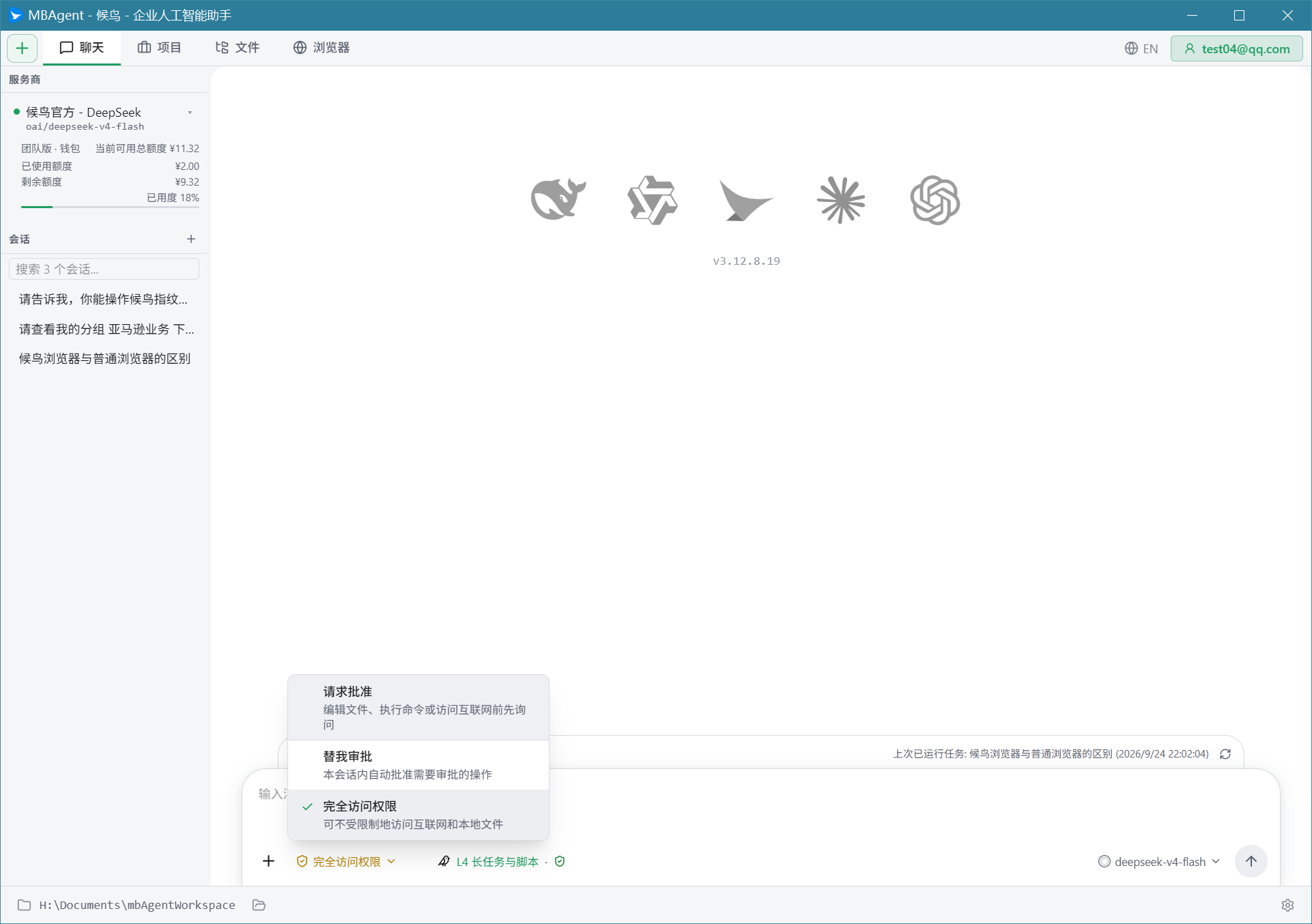
- In the "Model Selection" dialog, pick a model you like
- Beginners are recommended to use Mbbrowser official model - deepseek-v4-flash (fast and low cost)
- Click "Confirm"
TIP
Models can be switched anytime later, no need to dwell on which to pick first. See Model Selection & Provider Setup.
Step 4: Complete the onboarding tour
MBAgent will display a short onboarding tour introducing the main interface areas. You can click "Got it" to skip directly, or take 1 minute to browse.
4. Understanding the MBAgent Main Interface
After MBAgent launches, you will see a main window divided into three areas:
Provider
KMS entry
(Chat / Project / Terminal / File / Team / UI / Shell / Browser)
Quick look at area functions
| Area | Main function | Detailed doc |
|---|---|---|
| Top tab bar | Chat / Project / Terminal / File / Team / UI / Shell / Browser | Full Feature Menu Overview |
| Model selector | Quickly switch the current AI model | Model Selection & Provider Setup |
| Left session list | History chats, grouped by project, pinned | Task Panel Explained |
| Center main area | Display area for the current tab | Task Panel Explained |
| Bottom input box | Type your request; supports text + images + files | First Time Using MBAgent |
5. Common Installation Issues
1. Double-clicking the MBAgent icon does nothing
Cause: Mbbrowser main program is not running, or you have not logged into your account.
Solution:
- Confirm that Mbbrowser is started and logged in
- Restart MBAgent
2. The model list is empty
Cause: Your Mbbrowser account has not enabled AI model quota.
Solution:
- Visit the Mbbrowser Console: https://www.mbbrowser.com/console
- Go to AI Models → Enable the quota for the corresponding model
- Return to MBAgent → Settings → Refresh model list
3. Chinese displays as garbled text after launch
Cause: System locale setting issue.
Solution:
- Windows Settings → Time & Language → Language → Windows display language → Change to Simplified Chinese (China)
- Restart your computer and then launch MBAgent
4. Installer says "A newer version is already installed"
Cause: An old Mbbrowser folder is leftover on the computer.
Solution:
- Control Panel → Programs and Features → Uninstall the old Mbbrowser version
- Manually delete the leftover folder
C:\Program Files\Mbbrowser - Re-run the new installer
5. The working directory window keeps spinning
Cause: Mbbrowser main program is not running, so MBAgent cannot read the Mbbrowser account info.
Solution:
- Fully close MBAgent
- Start Mbbrowser and log in
- Restart MBAgent
6. Updating MBAgent
MBAgent updates together with the Mbbrowser main program. When you update Mbbrowser, MBAgent is auto-upgraded to the matching version.
Update steps:
- Mbbrowser will auto-detect new versions on launch
- After the update prompt appears, click "Update Now"
- After the update completes, restart Mbbrowser, then launch MBAgent
IMPORTANT
It is recommended to close MBAgent and Mbbrowser before updating. Do not update while MBAgent is running tasks, or tasks may be interrupted.
Next: First Time Using MBAgent → Say your first sentence to AI and see how it works for you.